
The Lead Capture Stack: Formspree + Slack + HubSpot
Wire a single form submission to create a HubSpot contact and alert your team on Slack, without writing any backend code.
Lead capture fails in two ways, and most teams have both:
- Delays in follow-up: Leads go into HubSpot. They create contact records with the right fields, the right lifecycle stage, the right source. And then they sit there. Nobody watches the contacts list actively. A high-intent demo request comes in on a Tuesday afternoon and gets reviewed at Friday’s pipeline call, by which point the prospect has already spoken to three alternatives.
- No paper trail: Someone sets up a Slack notification. Every form submission fires a message to
#sales-leads. Responses happen within minutes. But there’s no permanent record. When that person changes roles, the conversation history goes with them. When a lead comes back a few months later, nobody knows what was said or who said it.
By the end of this guide, you’ll have a single form submission that creates a HubSpot contact and alerts your team on Slack, configured entirely from dashboards without any backend code.
Why you need both
The instinct is to pick one. A small team picks Slack because nobody wants to maintain a CRM. A larger team picks HubSpot because the CRM is where deals live, and Slack is too noisy. Either way, you end up with one half of the job covered.
Slack is fast and ephemeral. A notification in a busy channel scrolls off in a few hours. Anyone can see the message, but nobody is responsible for it. There’s no deduplication either — if the same person submits twice, you get two separate Slack messages with no indication they’re connected. When someone does respond, that response lives in Slack, not attached to any lead record.
HubSpot is permanent and passive. The contact record persists, updates, and connects to your pipeline. But a record sitting in your contacts list generates no urgency on its own. Most sales teams aren’t always watching the contacts list. They respond to things that appear in front of them.
Response time decides whether a warm lead converts. Research published in Harvard Business Review tracked 2,241 US companies and found that firms contacting a web inquiry within an hour were nearly seven times more likely to qualify the lead than firms that waited longer than an hour, and over sixty times more likely than firms that waited a day or more. Slack is how you hit that window. HubSpot is how you stay organized once you do, and how the lead survives the moments when nobody’s watching Slack.
The form
For this stack to work, your form field names need to be consistent and descriptive. They become the JSON keys that travel through the form backend, into HubSpot, and into your Slack notification.
Four fields cover most B2B lead capture:
  <form action="https://formspree.io/f/YOUR_FORM_ID" method="POST">
    <input type="email" name="email" placeholder="Work email" required />
    <input type="text" name="company" placeholder="Company name" required />
    <select name="interest" required>
      <option value="">What are you looking for?</option>
      <option value="pricing">Pricing info</option>
      <option value="demo">Product demo</option>
      <option value="partnership">Partnership</option>
    </select>
    <textarea name="message" placeholder="Anything else? (optional)"></textarea>
    <button type="submit">Get in touch</button>
  </form>
The action attribute points to your Formspree form endpoint. Formspree receives the POST, stores the submission, and fires every plugin and webhook you’ve configured.
Create a Formspree form and replace
YOUR_FORM_IDwith your form’s ID before moving ahead.
Connecting HubSpot
The Formspree HubSpot plugin creates or updates a contact record every time your form receives a submission. You’ll find it in your form’s Workflow tab.
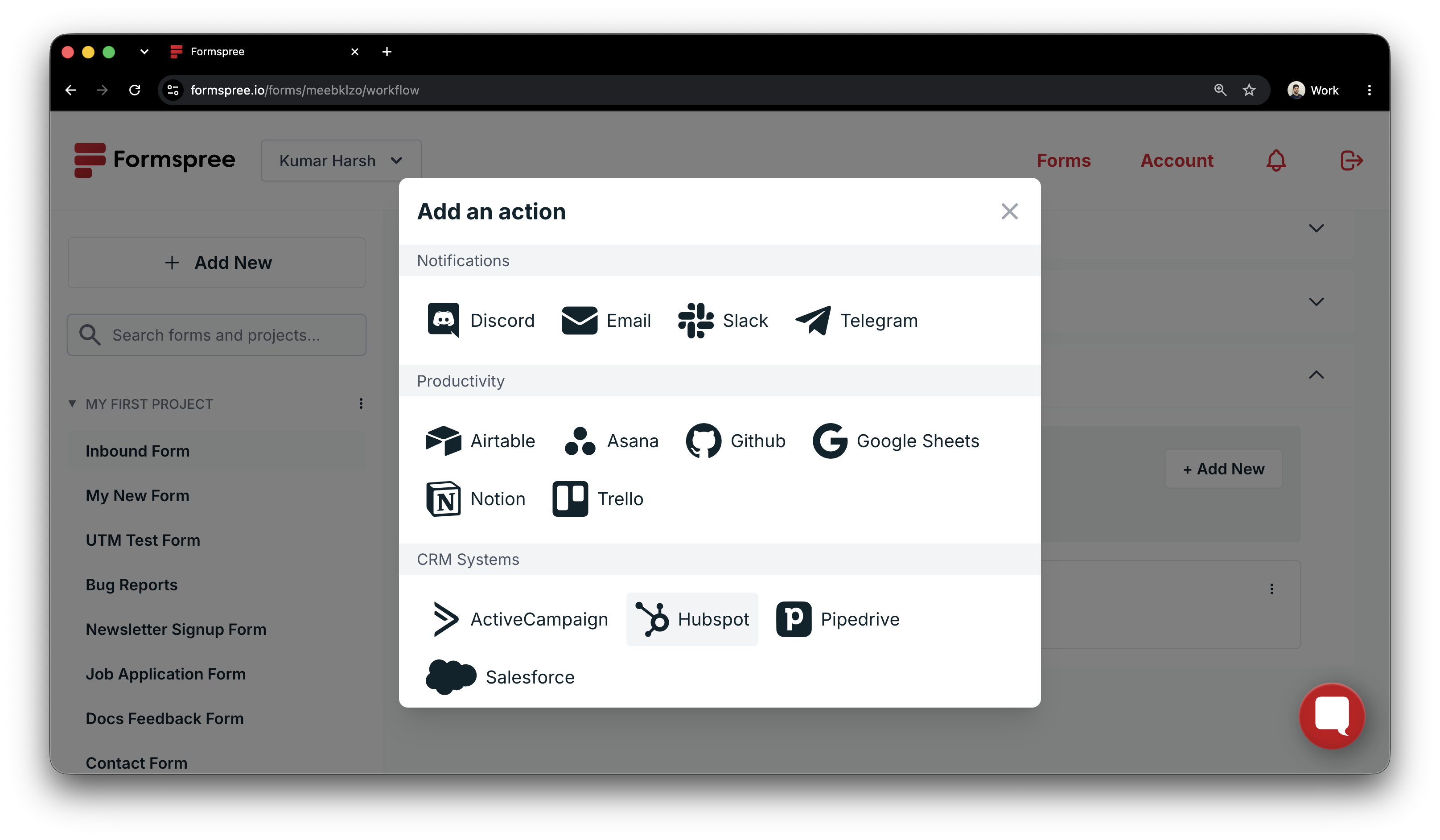
Click the HubSpot plugin button, then connect your HubSpot account and grant the requested permissions (user info, contacts read/write access).
Before the connection completes, you’ll configure two defaults: Lead Status and Lifecycle Stage. These values apply to every contact the plugin creates.
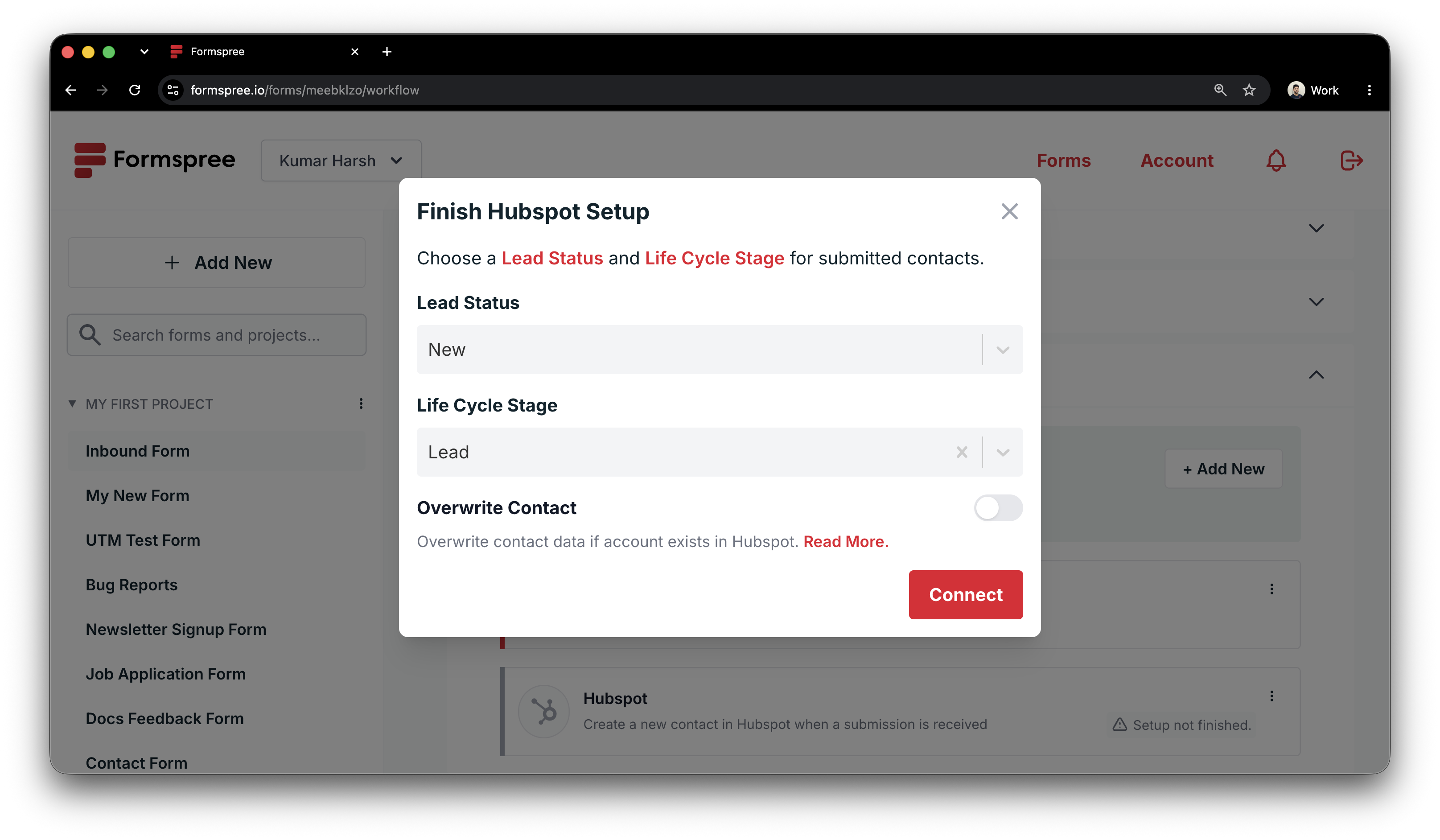
For a contact form, setting Lifecycle Stage to “Lead” and Lead Status to “New” puts every inbound submission into the right pipeline stage automatically, with no manual triage.
When a submission arrives with an email address that already exists in HubSpot, the plugin updates the existing contact instead of creating a duplicate. If someone submits your form twice (once in March and again in June when they’re actually ready to buy), the second submission updates their record with any changed information.
Field mapping
The plugin maps form fields to HubSpot contact properties by matching field names to HubSpot’s internal property names. These standard field names map automatically:
emailbecomes the contact’s email address and deduplication keycompanymaps to Company NamefirstNameto First NamelastNameto Last Namephoneto Phone Number.
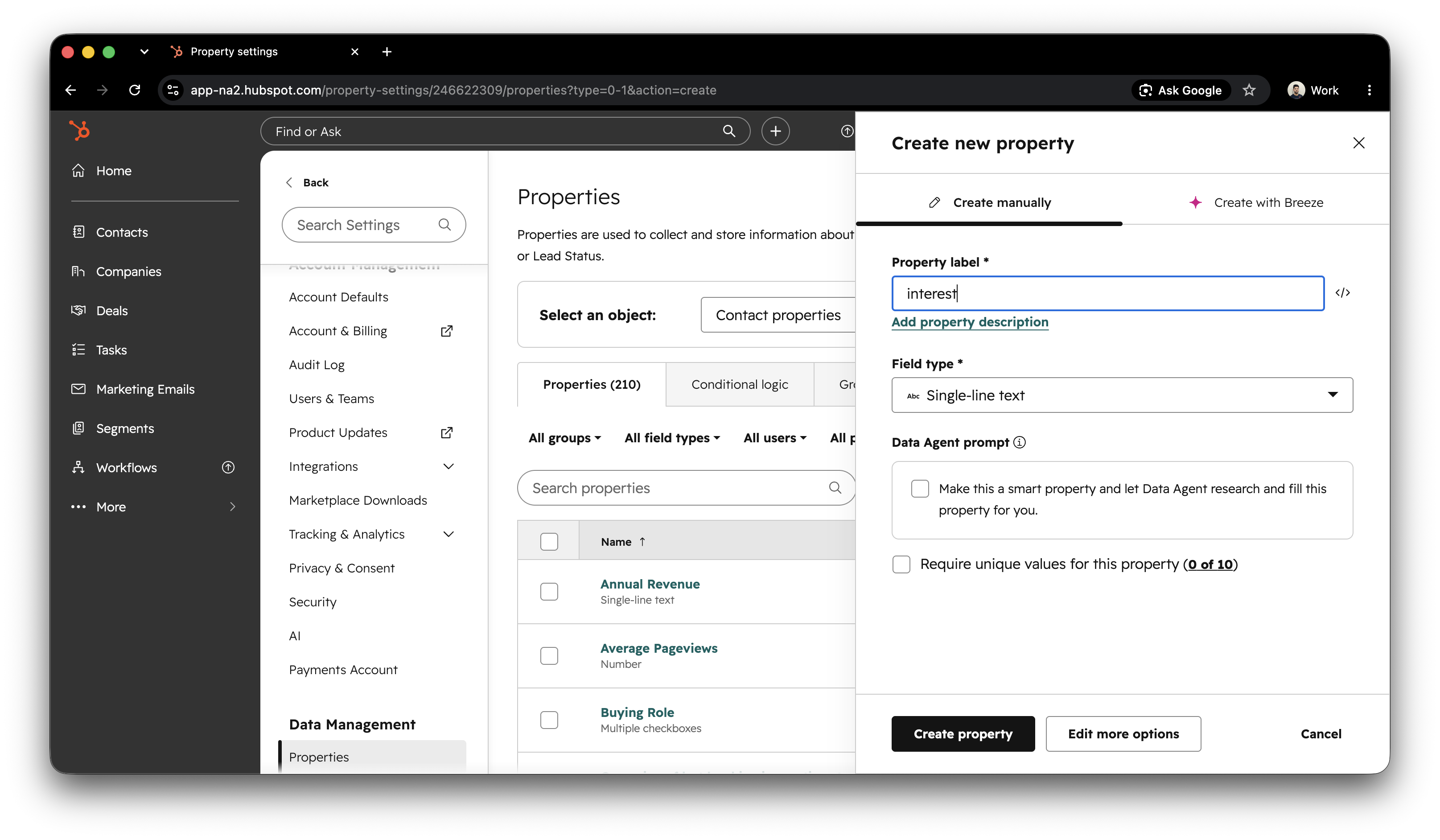
For any field outside that standard set, you need the HubSpot internal property name. The interest field from the form above doesn’t match any default HubSpot property. Go to HubSpot Settings > Properties > Contact Properties and create a custom property with an internal name of interest. Once that property exists, Formspree maps the submitted interest value to it automatically on every submission.
Connecting Slack
With HubSpot handling the permanent record, Slack handles the real-time alert. Formspree’s native Slack plugin takes a few minutes to connect.
From the Workflow tab, click the + Add New button under Actions. Select Slack, authenticate with your Slack workspace, and select the destination channel.
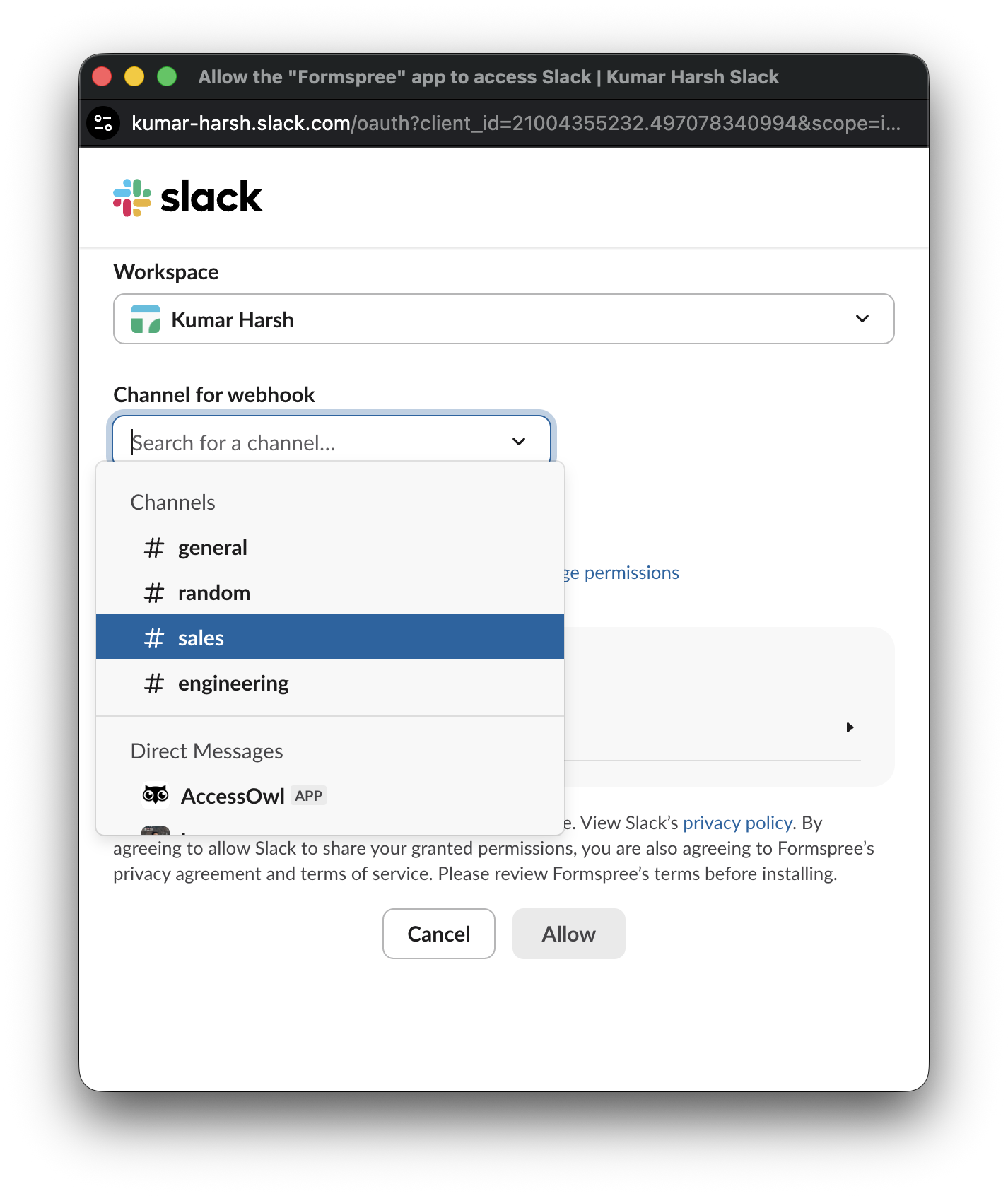
Formspree will now send a message to that channel for every new submission.
The default message lists all submitted fields. That’s functional for low-volume forms where every submission is notable. For a sales team on a form with real traffic, the format creates friction: whoever sees the notification has to read through every field to understand who submitted and what they want, and the message sits in a channel competing with everything else.
You can improve the message subject with a hidden name="subject" field in your form. When that field is present, Formspree uses its value as the Slack message header. Paired with a select dropdown, it generates useful subjects like “New lead: Product demo” rather than the default “New submission from [form name]”:
<input type="hidden" name="subject" value="New lead" />
For a form with a select named interest, use {{ interest }} syntax. Formspree substitutes it for the actual submitted value:
<input type="hidden" name="subject" value="New lead: {{ interest }}" />
That gets you a more readable notification subject without any additional tooling. The message body still lists all fields. If different lead types need to reach different channels, Slack for Forms: Beginner Setup vs. Advanced Routing covers the webhook-based approach.
After the notification fires
The Slack notification is the handoff. Whoever sees it and decides to respond owns the follow-up, but without logging that in HubSpot, that ownership is invisible to everyone else.
After you reach out, log the activity on the HubSpot contact record. A quick call log, email note, or follow-up task takes 30 seconds and means the next person who looks at the record knows exactly where things stand.
If you reply by email, BCC your HubSpot logging address (found in HubSpot under Settings > General > Email) to capture the thread on the contact record automatically. Move the lifecycle stage forward when the conversation progresses.
Without logging, Slack and HubSpot stay disconnected: fast responses that don’t persist, and CRM records that nobody updates. A lead who goes quiet for three months and returns with a real budget is only recoverable if the record reflects what happened the first time.
A form submission now creates a structured HubSpot contact with lifecycle stage set and fields mapped, and fires a Slack notification with a subject line built from the submitted interest value.
The Slack alert is why you respond within the hour. The HubSpot record is why the lead doesn’t disappear when you’re in back-to-back meetings, when the person who first responded changes roles, or when the lead resurfaces months later with a different question.
The same two-plugin pattern applies beyond B2B sales. For ecommerce wholesale inquiries with Klaviyo in place of HubSpot, see Ecommerce Lead Flow. For support tickets with Freshdesk, see Support Triage Without a Backend.