
Slack for Forms: Beginner Setup vs. Advanced Routing
Connect Formspree to Slack in a few clicks, or route submissions to different channels with a webhook handler.
At some point, your contact form gets a “How can we help?” dropdown, for things like sales inquiries, support requests, or billing questions. You add it because you want submissions to reach the right person faster. Six months later, someone on your team mentions offhand that they’ve been handling billing questions for weeks. They assumed it was their job because the notifications came to them. Nobody told them otherwise because nobody knew.
The dropdown didn’t fix routing. It just made the routing failure harder to see. Email puts every submission in one inbox, and whoever owns that inbox becomes the silent dispatcher. When they forward correctly, it works. When they’re busy, on vacation, or unsure, submissions stall or land in the wrong place. Email makes one person responsible for a decision that should happen automatically.
This article covers two approaches: connecting Formspree’s Slack plugin for immediate, no-code notifications, and building a webhook-based handler that routes submissions to different channels based on their content.
What routing through Slack actually changes
Email notifications for form submissions default to a personal inbox. One person sees it, one person decides what to do with it, and the conversation that follows happens somewhere else (another email thread, a Slack DM, a forwarded ticket). The context splits every time the submission changes hands.
A Slack notification posts to a channel. Everyone monitoring that channel sees the submission at the same time, and can respond in the thread, where the context stays visible to whoever picks it up next. A demo request landing in #sales doesn’t need to be forwarded. The right people are already there and can claim it directly.
If a second person checks five minutes later, they see the thread and know the submission is already being handled. With email, that person has no way of knowing unless they’re CC’d on a reply chain that may or may not exist.
Slack notifications are an alert layer, and Formspree’s submission dashboard is the record. Slack history is searchable but not queryable. Running a volume report or pulling a specific inquiry from three months ago is work you’ll do in Formspree.
Beginner setup: the Slack plugin
If one team owns your form and the same channel can see everything that comes in, Formspree’s Slack plugin covers it with no code.
Start with a form. The HTML below is a bare-bones contact form with a category dropdown (the same one we’ll use in the webhook section):
  <form action="https://formspree.io/f/YOUR_FORM_ID" method="POST">
    <input type="text" name="name" placeholder="Your name" required />
    <input type="email" name="email" placeholder="Email address" required />
    <select name="category">
      <option value="Sales question">Sales question</option>
      <option value="Support request">Support request</option>
      <option value="Other">Other</option>
    </select>
    <input type="hidden" name="subject" value="{{category}} from {{name}}" />
    <textarea name="message" placeholder="Your message" required></textarea>
    <button type="submit">Send</button>
  </form>
To connect Slack, open the form in the Formspree dashboard, go to the Workflow tab, click the + Add New button, and select the Slack plugin. You’ll need to authenticate with your Slack workspace and select a destination channel.
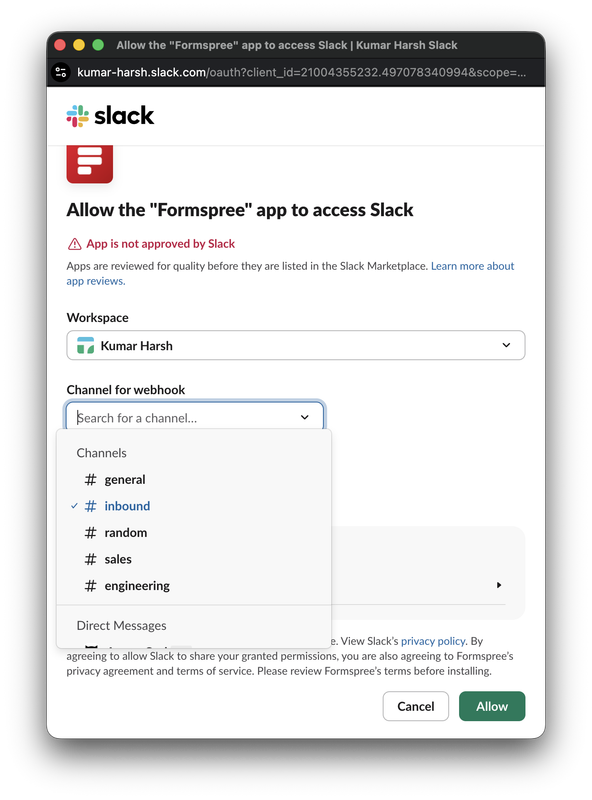
Two fields in the form above work together to build the notification subject. The hidden subject input uses Formspree’s {{field}} template syntax to combine the category dropdown value with the submitter’s name, so your team sees “Sales question from Alex Chen” in the Slack message. For a fixed subject, skip the template and use a plain value:
<input type="hidden" name="subject" value="Contact form submission" />
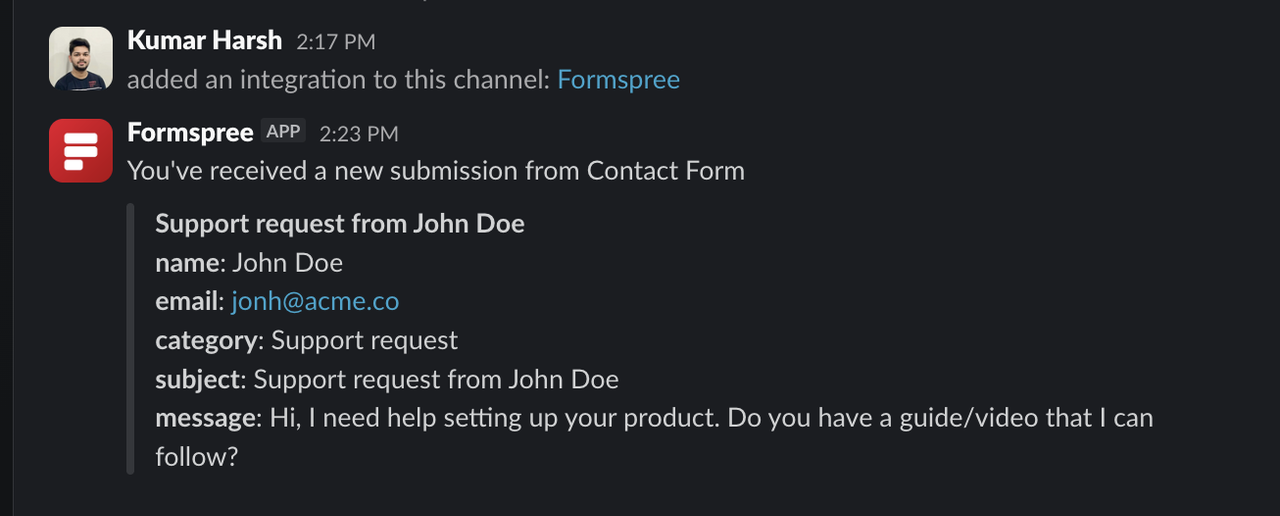
The Slack plugin is available on Personal, Professional, and Business plans. It fits teams where everyone who might respond to a submission is already in one channel. A three-person startup with a single #contact channel is the clearest case: nobody is siloed, volume is manageable, and the webhook complexity isn’t justified yet. When the team grows, and channels specialize by function, that changes.
Where the single-channel approach breaks down
After a product launch or a newsletter send, your contact form picks up traffic across multiple submission types at once. Sales questions, support requests, and billing issues all land in the same #general channel, and the people monitoring #general aren’t the right people for each. Someone has to read every message, assess the type, and forward it to whoever should respond.
That forwarding step is manual routing, which is exactly what the category dropdown was supposed to prevent. The Slack plugin routes everything to one configured channel and has no conditional logic. Handling the webhook yourself adds that logic, and the form HTML doesn’t change.
Advanced routing via webhooks
Formspree webhooks (available on Professional and Business plans) POST the raw submission payload as JSON to any URL you control. That puts a function between the form submission and the Slack message, and the routing logic lives there.
When the user submits the form, Formspree validates it, stores it, and POSTs the payload to your webhook URL. Your serverless function reads that payload, checks which value was selected in the category dropdown, looks up the target Slack channel, and calls the Slack API.
Before writing any handler code, you need a Slack bot token. Go to api.slack.com/apps, click Create New App → From scratch, name it (e.g. “Form Notifications”), and select your workspace. In the left sidebar, go to OAuth & Permissions, add the chat:write bot scope, then click Install to Workspace. After approval, copy the Bot OAuth Token — it starts with xoxb- and is your SLACK_BOT_TOKEN. Slack’s basic app setup guide covers this in more detail if you haven’t built a Slack app before.
You’ll also need the ID of each channel the bot should post to. Right-click the channel name in Slack, select View channel details, and copy the ID at the bottom (format: C0123456789). Then invite the bot to each channel with /invite @Form Notifications — otherwise Slack returns not_in_channel and the message never posts.
To configure the webhook, open the form in the Formspree dashboard, go to the Workflow tab, click + Add New, select Webhook, and enter your endpoint URL as the Target URL.
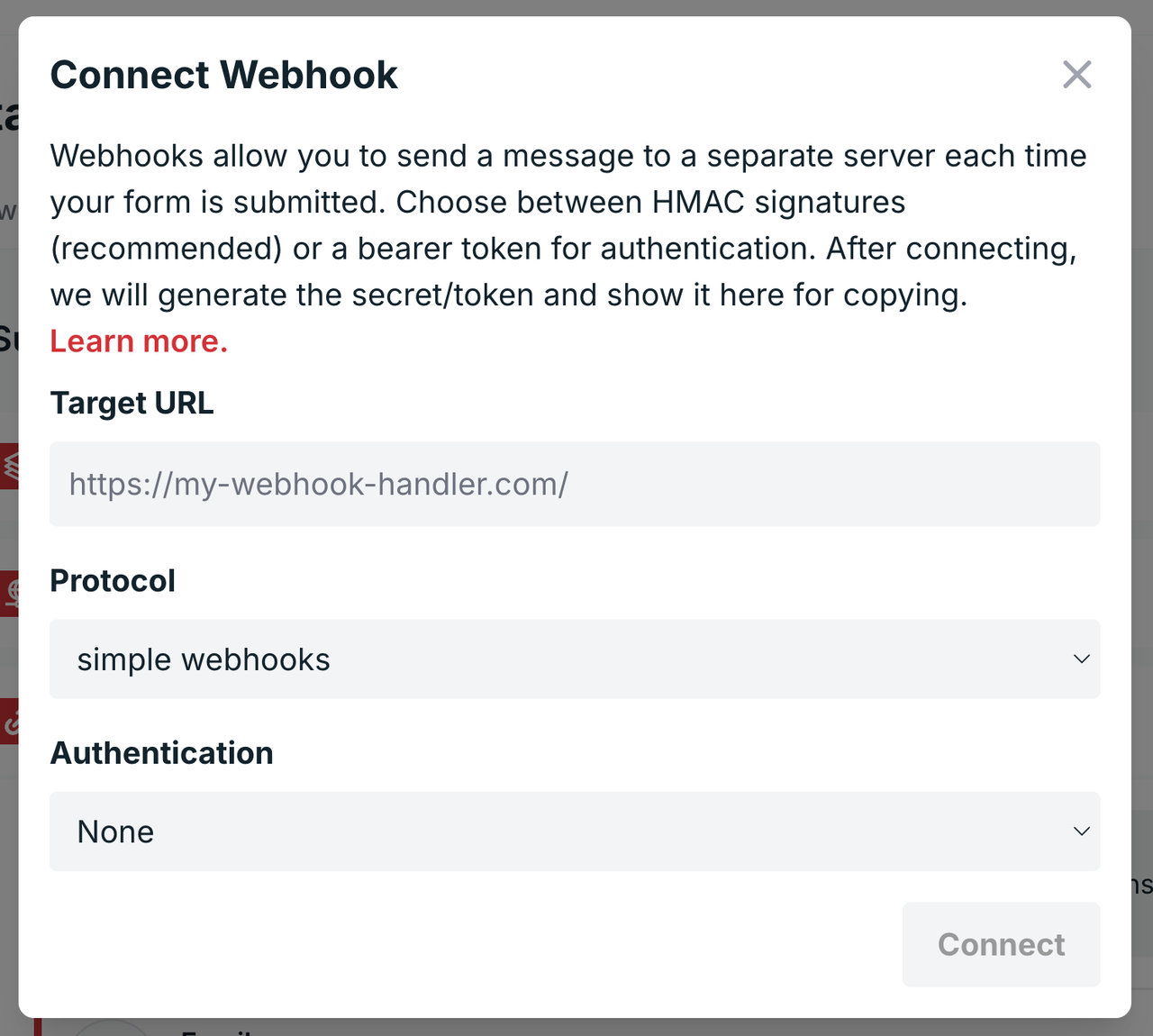
Formspree POSTs a JSON payload to that URL on each new submission:
  {
    "form": "your-form-id",
    "keys": ["name", "email", "category", "subject", "message"],
    "submission": {
      "_date": "2026-07-13T10:30:00",
      "name": "Alex Chen",
      "email": "alex@example.com",
      "category": "Sales question",
      "subject": "Sales question from Alex Chen",
      "message": "We're evaluating tools for our team of 40..."
    }
  }
Your form field values sit inside submission. The keys array preserves field order, useful for rendering but not needed when routing by a specific field name. The handler below routes by category value (the raw dropdown selection), mapping each option to a Slack channel ID stored in environment variables:
  // pages/api/form-webhook.js
  export default async function handler(req, res) {
    if (req.method !== 'POST') return res.status(405).end();

    // Log the raw payload before doing anything else
    console.log('Formspree webhook received:', JSON.stringify(req.body));

    const { name, email, category, subject, message } = req.body.submission;

    const channelMap = {
      'Sales question': process.env.SLACK_CHANNEL_SALES,
      'Support request': process.env.SLACK_CHANNEL_SUPPORT,
      'Other': process.env.SLACK_CHANNEL_GENERAL,
    };

    const channel = channelMap[category] ?? process.env.SLACK_CHANNEL_GENERAL;

    const slackRes = await fetch('https://slack.com/api/chat.postMessage', {
      method: 'POST',
      headers: {
        'Content-Type': 'application/json',
        Authorization: `Bearer ${process.env.SLACK_BOT_TOKEN}`,
      },
      body: JSON.stringify({
        channel,
        text: `New ${category} submission from ${name} (${email})`,
        blocks: [
          {
            type: 'section',
            text: {
              type: 'mrkdwn',
              text: `*From:* ${name} <${email}>\n*Subject:* ${subject}\n\n${message}`,
            },
          },
          {
            type: 'actions',
            elements: [
              {
                type: 'button',
                text: { type: 'plain_text', text: 'View in Formspree' },
                url: `https://formspree.io/forms/YOUR_FORM_ID/submissions`,
              },
            ],
          },
        ],
      }),
    });

    if (!slackRes.ok) return res.status(502).end();

    res.status(200).json({ ok: true });
  }
The channelMap lookup handles the three known category values. The ?? fallback routes anything unexpected to a general channel. Channel IDs live in environment variables, so the routing configuration doesn’t sit in source code and can change without editing the deployment. The subject field (built from the template) appears in the Slack message body as the human-readable subject line.
The blocks array is Slack’s Block Kit format, which renders as structured sections and action buttons. The plain text field is the fallback Slack uses in push notifications, Slack Connect, and any context where blocks don’t render. Always include both.
Here’s what the Slack notification looks like now:
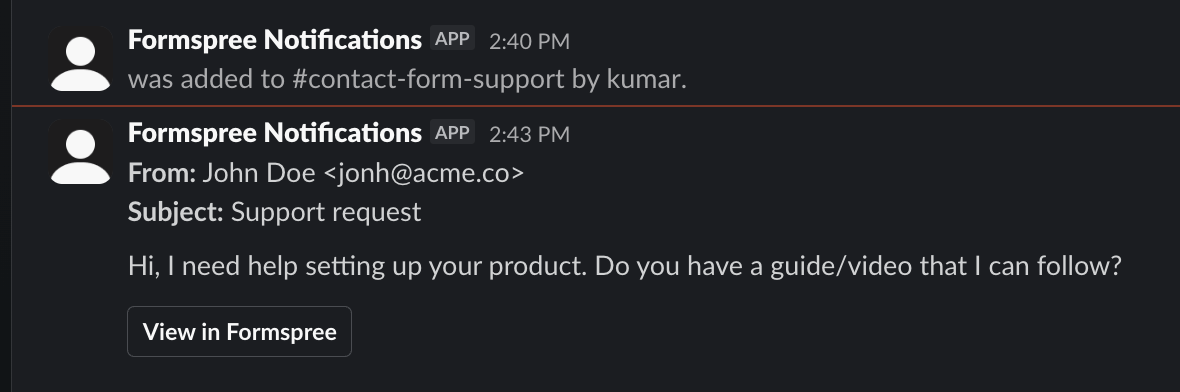
Routing through the webhook handler keeps your bot token off the client. The Slack call also happens after Formspree has validated the submission and applied spam filtering, so only clean data reaches Slack.
Tightening the routing logic
A few additions matter once the webhook is in production.
Some submissions warrant more urgency than a channel post. A sales inquiry that needs a fast response shouldn’t wait for whoever happens to check #sales next. Prepending <!channel> to the message text notifies everyone in the channel, and gating it on category keeps that from firing on every submission. List the category values from your dropdown that should trigger it:
  const urgentTypes = ['Sales question'];
  const mention = urgentTypes.includes(category) ? '<!channel> ' : '';

  // then in the message body:
  text: `${mention}New ${category} submission from ${name} (${email})`,
Slack’s rate limits allow around 50 chat.postMessage calls per minute per workspace under the default tier. Under normal contact form traffic, that ceiling is irrelevant, but a burst — a product launch, a newsletter send with a visible CTA — can push past it and trigger a 429 with a Retry-After header. Return a non-2xx response to Formspree when that happens so it retries the delivery.
Duplicates are worth handling too. If the same user submits twice in quick succession (double-click, browser retry, flaky connection), you’ll get duplicate Slack messages for the same inquiry. Keep the TTL short — 5 seconds is well below the time it takes to fill out a form again, so a genuine second inquiry a minute later still comes through, while a double-click within a few hundred milliseconds gets collapsed. A Redis check before the Slack call handles this without adding meaningful latency:
  const seen = await redis.get(email);
  if (seen) return res.status(200).json({ ok: true, duplicate: true });
  await redis.set(email, '1', { ex: 5 }); // 5-second window
What to do when things go wrong
The console.log at the top of the handler is meant for this. Logging the raw payload before any routing logic runs means the full submission is in your logs when something breaks downstream — an unexpected field value, a Slack API error, a failed channel lookup. A 500 trace without the payload is much harder to debug.
Formspree retries webhook deliveries on 5xx responses and network errors. The submission is always stored in Formspree regardless of whether the webhook succeeded, so a notification failure delays awareness without losing data. The handler above returns 502 on Slack API failure, which triggers a Formspree retry. Returning 200 in that same situation closes the delivery and swallows the error.
Set an alert for when your webhook URL goes 24 hours without traffic. Silence means either no submissions or a broken pipeline: a changed route path, or an expired Slack bot token. The two look identical until someone notices submissions aren’t arriving.
Choosing between the plugin and the webhook
The plugin is the right starting point when one team owns all submissions, the default message format works, and volume stays low enough that every notification is worth reading. The setup takes a few minutes and requires no code or deployed infrastructure.
The webhook is the right move when different submission types need to reach different teams, when you need a custom message format (Block Kit layouts, conditional urgency mentions, calculated fields), or when you want to fan out to multiple destinations from a single submission event (Slack, a CRM entry, a database write, all from the same webhook handler). For worked examples of Slack paired with a second system, see the Freshdesk support triage, HubSpot lead capture, and Klaviyo ecommerce guides.
The form HTML is identical in both approaches: the <form> element, the field names, and the action URL. You’re changing only what Formspree does with the submission after it stores it.
Where to start
Connect the plugin first. Send a few test submissions, see what the Slack message looks like, and decide whether the default format and single-channel routing cover your needs. Most contact forms don’t need routing logic on day one, and the plugin gets you from zero to Slack notifications in a few minutes.
When the single-channel approach starts generating noise or missed handoffs, the webhook handler is the natural next step. Add the webhook URL in the Formspree dashboard, deploy the handler, and disconnect the plugin. The form stays exactly as it is.