
Support Triage Without a Backend: Freshdesk + Slack + Formspree
Turn a static contact form into structured Freshdesk tickets and real-time Slack alerts, with no backend to maintain.
Connect a Formspree form to both Freshdesk and Slack, and you get structured ticket creation plus real-time team alerts from a static site, with no backend process running anywhere. The setup is one form, two plugin connections in the Formspree dashboard, and one submission event that triggers both.
Triage happens before the ticket lands in Freshdesk. A submitter who selects “Bug report,” sets priority to “Urgent,” and writes out reproduction steps is doing classification work that would otherwise fall to the first agent to open the inbox. By the time the ticket appears in Freshdesk, the type is set, the priority is mapped, and the right team’s Slack channel already has a notification.
This article covers both plugin and webhook-based paths for teams that need Slack notifications routed to different channels depending on issue type. The form HTML stays the same for both approaches.
Designing the intake form
The fields you choose determine whether a ticket is actionable on first read or requires a follow-up exchange before an agent can act. A generic “describe your issue” textarea places the classification burden on whoever opens the ticket in Freshdesk. Structured selects and labeled inputs move that work earlier, to the person submitting the request, at the point when they already know what kind of issue they have.
Four fields carry most of the routing and classification work:
- Issue type (select): the primary routing signal. It determines which Freshdesk group receives the ticket, which Slack channel gets the alert, and what ticket type Freshdesk records. A select gives you a fixed set of values to map against; a free-text field would require parsing every submission before routing.
- Priority (select): lets the user self-classify. The Formspree Freshdesk plugin reads this field directly and maps it to Freshdesk’s native priority levels. Use lowercase option values matching what Formspree expects: “low”, “normal”, “high”, “urgent”.
- Summary (text input): becomes the ticket subject line.
- Details (textarea): maps to the ticket description. Name this field
message— the Freshdesk plugin expects a field namedmessageormsgfor the main ticket body.
One field naming rule matters throughout: HTML name attributes become the field labels in Slack messages and the Formspree submission view. issue_type is readable by an agent. field_3 requires opening the original submission to interpret.
  <form action="https://formspree.io/f/YOUR_FORM_ID" method="POST">
    <input type="hidden" name="_gotcha" style="display:none" />
    <input type="hidden" name="subject"
      value="Support: {{ issue_type }} - {{ summary }}" />

    <label>
      Email address
      <input type="email" name="email" required />
    </label>

    <label>
      Issue type
      <select name="issue_type" required>
        <option value="">Select a category</option>
        <option value="Bug report">Bug report</option>
        <option value="Billing question">Billing question</option>
        <option value="Feature request">Feature request</option>
        <option value="Other">Other</option>
      </select>
    </label>

    <label>
      Priority
      <select name="priority">
        <option value="low">Low</option>
        <option value="normal">Normal</option>
        <option value="high">High</option>
        <option value="urgent">Urgent</option>
      </select>
    </label>

    <label>
      Short description
      <input type="text" name="summary" required />
    </label>

    <label>
      Details (steps to reproduce, affected URL, or context)
      <textarea name="message" rows="6" required></textarea>
    </label>

    <button type="submit">Submit</button>
  </form>
Two hidden fields do background work the submitter never sees. The _gotcha honeypot sits invisible to humans but gets auto-filled by bots. Formspree checks it server-side and discards any submission where it’s been populated. The subject hidden field uses Formspree’s mustache syntax: {{ issue_type }} and {{ summary }} resolve to the user’s actual values at submission time, so the notification arrives as “Support: Bug report - Login crashes on Safari” rather than “New form submission.”
That resolved string does triple duty: it’s the Freshdesk ticket title (via the Freshdesk plugin’s subject field mapping), the Slack message subject line (via the Slack plugin’s subject field mapping), and the email notification subject if you’re using the email path. One hidden field sets all three.
Creating Freshdesk tickets
Formspree connects to Freshdesk in two ways. The native Freshdesk plugin maps form fields to Freshdesk ticket attributes directly, including priority and tags, and is available on Professional and Business plans. The email path works on any plan with no code, but ticket priority, type, and tags arrive as plain text in the ticket body rather than as structured Freshdesk attributes.
The Freshdesk plugin
Open your form in the Formspree dashboard and go to the Workflow tab. Click + Add New and select the Freshdesk plugin. You’ll be asked for your Freshdesk domain and API key:
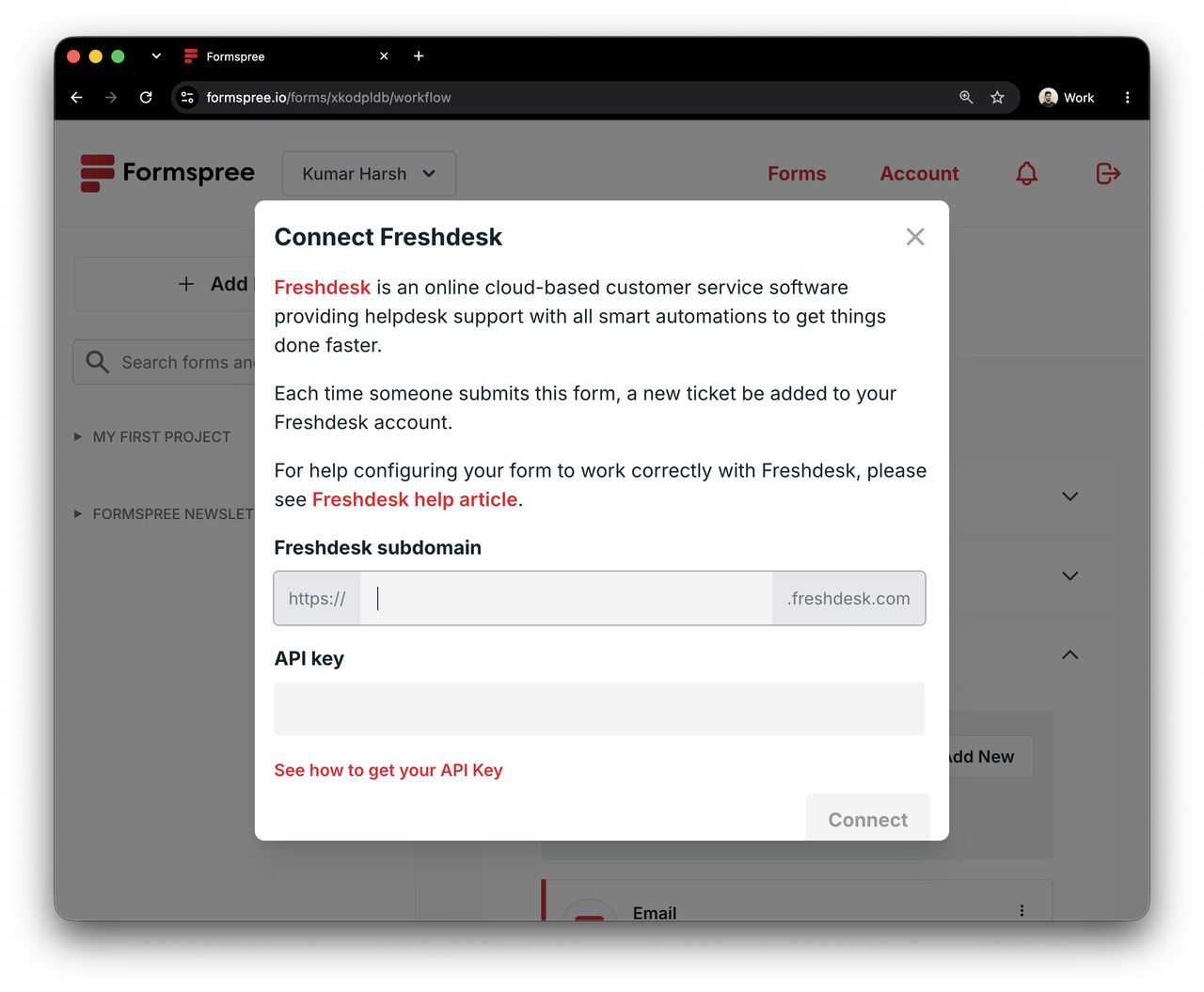
Click the Connect button. Your form will now send all submissions to your Freshdesk instance.
The plugin requires two fields on your form: an email input with type="email" and a message or msg textarea. Both are already in the form above. Beyond those required fields, the plugin reads several optional ones automatically based on their name attributes:
name(orfirstName/lastName): sets the contact name on the Freshdesk ticketsubject: becomes the ticket title in Freshdesk — the mustache-resolved value from the hidden field works herepriority: accepts “low”, “normal”, “high”, or “urgent” and maps directly to Freshdesk’s native priority field (no integer conversion needed)tags: a comma-separated string that maps to Freshdesk ticket tags
The issue_type field from the form above doesn’t have a built-in Freshdesk mapping, so it won’t appear in the ticket description — only the message field goes there. To capture issue_type, map it to a Freshdesk custom field: the plugin matches form field names to Freshdesk custom field agent labels, case-insensitively.
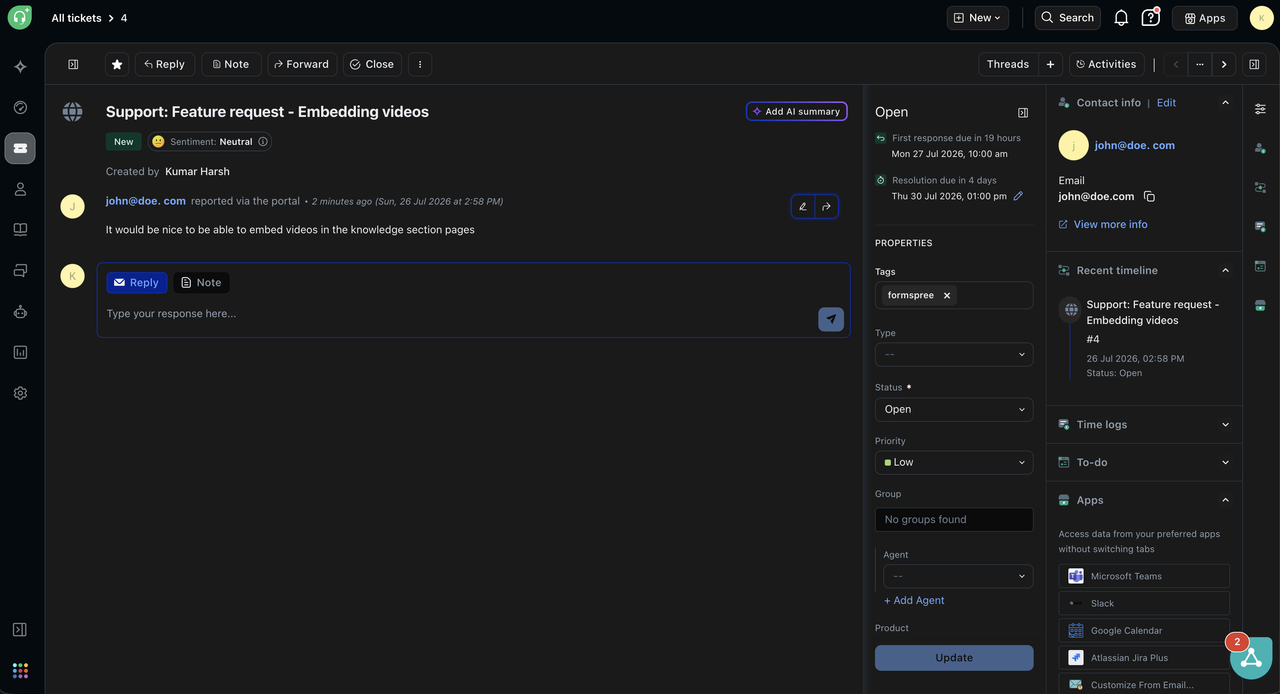
After a submission, Formspree looks up or creates a Freshdesk contact by email address and opens a ticket with the correct subject, priority, and the message in the description. The full Freshdesk plugin documentation covers custom field mapping for number, checkbox, and dropdown field types if your Freshdesk setup uses them.
The email path
If you’re not on a plan with the Freshdesk plugin, Formspree can still feed submissions to Freshdesk through email. Every Freshdesk account has an inbound support address, typically support@yoursubdomain.freshdesk.com, and any email sent to that address creates a new ticket threaded by sender address, with the email subject becoming the ticket title.
To connect: update the notification email address in your Formspree dashboard to your Freshdesk support inbox. The mustache-resolved subject value carries through, so the ticket title arrives as “Support: Bug report - Login crashes on Safari” rather than a generic label.
Priority, type, and tags arrive as readable text in the ticket body, not as structured Freshdesk fields. An agent sets those attributes manually before assigning the ticket. For low-volume queues where that step takes seconds, this is a workable starting point before committing to a plan upgrade.
Slack notifications
Freshdesk tracks and assigns tickets. Slack creates awareness the moment a ticket arrives. You can run both the Freshdesk plugin and the Slack plugin on the same form — one submission triggers both without any additional orchestration. (The same two-plugin pattern works for sales leads; see The Lead Capture Stack for the HubSpot version.)
The Slack plugin
In the same Workflow tab where you configured Freshdesk, click the Slack plugin. Authenticate with your Slack workspace, select a channel, and every subsequent submission posts a formatted message to that channel with all submitted field values.
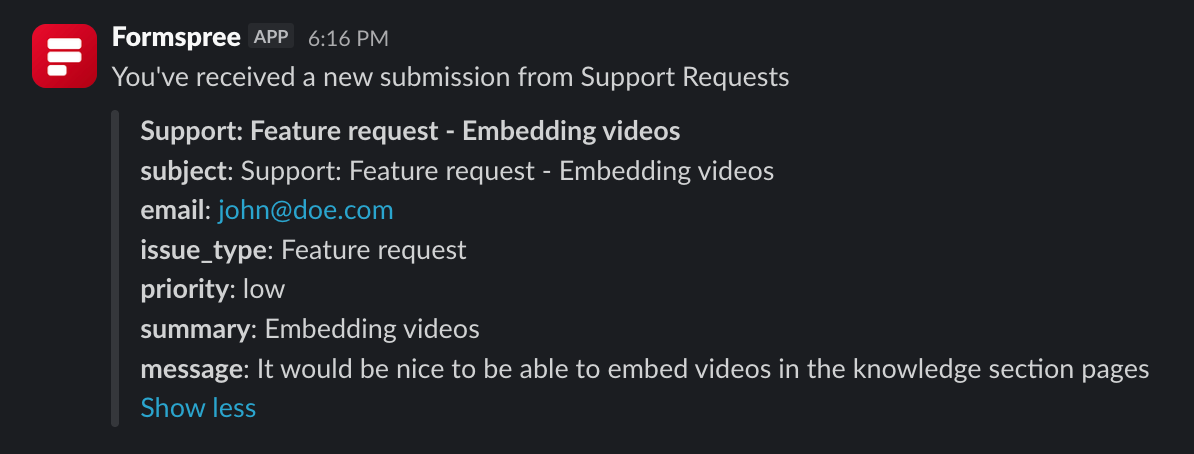
The subject hidden field you already added to the form sets the subject line of the Slack message. Without it, the notification uses a generic label. With it, the Slack message reads “Support: Feature request - Embedding videos” in the channel, matching the Freshdesk ticket title exactly.
All submissions go to a single channel, and changing the destination channel requires disconnecting and reconnecting the plugin. For a small team monitoring one #support channel, that’s a reasonable tradeoff for zero configuration overhead. When bug reports need to reach #engineering and billing questions need to reach #ops, the plugin can’t split them.
Routing to different channels by issue type
Conditional channel routing requires a serverless function that receives the Formspree webhook payload and calls the Slack API with the correct channel for each issue_type. (Slack for Forms: Beginner Setup vs. Advanced Routing covers this pattern in more depth.) If you set this up, disable the native Slack plugin on the form — otherwise every submission posts twice.
Set up the webhook plugin in your Formspree dashboard under the form’s Workflow tab. Formspree POSTs the submission as JSON to that URL after running spam filtering and storing the submission in the dashboard.
  // api/support-webhook.js (Vercel or Netlify Functions)
  export default async function handler(req, res) {
    if (req.method !== 'POST') return res.status(405).end();

    const {
      email,
      issue_type,
      priority,
      summary,
      message,
    } = req.body.submission ?? {};

    if (!email || !issue_type || !message) {
      return res.status(400).json({ error: 'Missing required fields' });
    }

    const channelMap = {
      'Bug report': process.env.SLACK_CHANNEL_ENGINEERING,
      'Billing question': process.env.SLACK_CHANNEL_OPS,
      'Feature request': process.env.SLACK_CHANNEL_PRODUCT,
      'Other': process.env.SLACK_CHANNEL_SUPPORT,
    };

    const channel = channelMap[issue_type]
      ?? process.env.SLACK_CHANNEL_SUPPORT;

    const slackRes = await fetch('https://slack.com/api/chat.postMessage', {
      method: 'POST',
      headers: {
        'Content-Type': 'application/json',
        Authorization: `Bearer ${process.env.SLACK_BOT_TOKEN}`,
      },
      body: JSON.stringify({
        channel,
        text: `New ${issue_type} from ${email}`,
        blocks: [
          {
            type: 'section',
            text: {
              type: 'mrkdwn',
              text: `*${issue_type}* (${priority})\n*From:* ${email}\n*Summary:* ${summary}\n\n${message}`,
            },
          },
        ],
      }),
    });

    const slackBody = await slackRes.json();
    if (!slackBody.ok) {
      console.error('Slack API error:', slackBody.error);
      return res.status(502).end();
    }

    return res.status(200).json({ ok: true });
  }
IMPORTANT: The webhook URL is a public endpoint. Any POST reaches the same code path Formspree does, and the handler above trusts the payload after only a method check. Before deploying, make sure to add signature or shared-secret verification at the top of the handler and configure the matching auth method on your Formspree webhook connection (basic auth, bearer token, or HMAC signature, depending on what your platform supports) so unauthenticated calls are rejected.
When setting up the channel mappings, make sure to use channel IDs, not channel names, in your environment variables. Names can be changed by any workspace admin; IDs cannot. You can right-click a channel in Slack, select “Copy link,” and the alphanumeric string at the end of the URL is the ID.
The fallback to SLACK_CHANNEL_SUPPORT in the channelMap lookup handles any issue_type value not explicitly mapped. Adding a new option to the select dropdown in the future without a corresponding channel entry routes to a general channel rather than dropping the notification silently.
Return a non-2xx status when the Slack call fails. Formspree retries webhook deliveries on 5xx responses and network errors, so a 502 gets the notification redelivered instead of dropped. Returning 200 closes the delivery and swallows the error. Slack returns HTTP 200 with ok: false for API errors like channel_not_found, so check the parsed response body rather than the HTTP status.
Routing Freshdesk tickets to the right groups
Freshdesk’s built-in Workflow Automator can handle group assignment without additional code. Under Admin in the Freshdesk dashboard, create an automation rule that assigns newly created tickets by matching the subject line: “Bug report” to the engineering group, “Billing question” to customer support, “Feature request” to the product team. Automator rules run at ticket creation, so the assignment happens before any agent opens the queue.
If you already have a webhook function running for Slack routing, extend that function to call the Freshdesk Tickets API at the same time. Add a group map alongside the channel map and fire both API calls from the same function. Disable the Freshdesk plugin on the form first — both running creates two tickets per submission.
  const priorityLevels = { low: 1, normal: 2, high: 3, urgent: 4 };
  const asInt = (v) => (v ? parseInt(v, 10) : undefined);

  const groupMap = {
    'Bug report': asInt(process.env.FRESHDESK_GROUP_ENGINEERING),
    'Billing question': asInt(process.env.FRESHDESK_GROUP_BILLING),
    'Feature request': asInt(process.env.FRESHDESK_GROUP_PRODUCT),
  };

  const freshdeskRes = await fetch(
    `https://${process.env.FRESHDESK_DOMAIN}.freshdesk.com/api/v2/tickets`, {
    method: 'POST',
    headers: {
      'Content-Type': 'application/json',
      Authorization: `Basic ${Buffer.from(`${process.env.FRESHDESK_API_KEY}:X`).toString('base64')}`,
    },
    body: JSON.stringify({
      email,
      subject: `${issue_type}: ${summary}`,
      description: message,
      priority: priorityLevels[priority] ?? 2,
      group_id: groupMap[issue_type],
      source: 2,
    }),
  });

  if (!freshdeskRes.ok) {
    console.error('Freshdesk API error:', await freshdeskRes.text());
    return res.status(502).end();
  }
Fetch your group IDs from GET /api/v2/groups with your API credentials before filling in the environment variables. The Authorization header uses Freshdesk’s standard basic auth format, with the API key as username and the literal string X as the password.
Add a hidden form_source field if the same form is embedded on multiple pages of your product:
<input type="hidden" name="form_source" value="pricing-page" />
That field appears in the Slack message and the Formspree submission view.
What the agent sees
A high-priority bug report submitted through the form flows through Formspree’s spam filtering and storage, triggers the Freshdesk plugin (or webhook), and posts to Slack within a few seconds.
The Freshdesk ticket arrives with “Bug report: Login crashes on Safari” as the title, “Urgent” set as the priority, and the reproduction steps in the ticket description, pre-assigned to the engineering group if group routing is configured. The agent reads it once and has everything needed to open an internal issue or ask a targeted clarifying question, instead of first working out what kind of issue it is and who owns it.
The Slack notification reaches #engineering at the same time. The engineer on rotation sees the issue type, priority, and summary in the channel, can click through to Freshdesk, and can start triaging before the next scheduled queue review.
The form_source field, if present, tells the agent whether to look at server logs for an authenticated user or assume a pre-signup context.
Wrapping up
The plugin path is the right starting point: Freshdesk plugin plus Slack plugin, both active on the same Formspree form, configured in about ten minutes with no code. It handles priority mapping and field-to-ticket-attribute translation natively, and it works for any support volume where one Slack channel covers the whole team.
Move to the webhook path when you need Slack notifications split by issue type across different team channels, or when you need Freshdesk group assignment at ticket creation time rather than by a post-creation Automator rule. The form HTML doesn’t change between the two approaches. Formspree stores every submission regardless of whether the webhook succeeds, so a function deployment issue never loses a request — you can always review unprocessed submissions in the Formspree dashboard.