
Ecommerce Lead Flow: Formspree + Klaviyo + Slack
Turn a wholesale inquiry form into a Klaviyo profile with the right properties and a Slack alert to the people who need to act now, with no backend code.
Your Klaviyo “Wholesale Inquiries” flow sent eight emails last week. The open rate was 34%, which is solid. One subscriber replied to the third email asking how quickly you could fulfill a 400-unit order.
They replied to the “no-reply” sender address. The email bounced.
The automated flow worked exactly as designed. But a 400-unit wholesale inquiry is a sale to close within hours, not a subscriber to nurture over a sequence. Klaviyo’s automation handles the full lifecycle of someone who discovered your brand through an ad. But high-value form submissions (wholesale inquiries, custom order requests, retail partnerships) need a person, not a flow step.
What’s missing is a signal that reaches your team before Klaviyo takes over, filtered so it fires only for submissions that warrant a human response. Not every newsletter signup. Not every “notify me when back in stock.” The ones worth acting on now.
By the end of this guide, you’ll have a wholesale inquiry form that creates a Klaviyo profile with the properties your flows need, and sends a Slack alert to the people who need to know now. The core setup takes no backend code.
What Klaviyo needs to do its job
Klaviyo runs on flows: automated email sequences that trigger based on list membership and profile properties. (If you’re still deciding between Klaviyo and a list- or tag-based tool, this comparison of Mailchimp, Kit, and Klaviyo covers how their data models differ.) A subscriber added to your list without the right profile properties won’t trigger any flow, or will enter a generic flow designed for a different intent.
Three things determine whether a form submission does anything useful in Klaviyo: which list the profile gets added to, what custom properties come with the profile, and whether your flow’s conditional logic can branch on those properties.
A “request a quote” form that adds someone to a “Wholesale Inquiries” list and sets a quote_type property to "bulk" can trigger a Klaviyo flow that sends a wholesale introduction template. The same form with no custom properties just adds a name to a list. The flow has nothing to branch on.
The field names you choose for your form become the property names that land on the Klaviyo profile. Get them right in the HTML and everything downstream works without extra configuration.
Building the form
An ecommerce wholesale inquiry form needs different fields than a generic B2B lead capture form. The intent is specific, and the email your team sends on follow-up should reflect that.
These fields cover the wholesale use case:
  <form action="https://formspree.io/f/YOUR_FORM_ID" method="POST">
    <input type="email" name="email" placeholder="Business email" required />
    <input type="text" name="firstName" placeholder="First name" required />
    <input type="text" name="lastName" placeholder="Last name" required />
    <input type="text" name="company" placeholder="Company name" required />
    <select name="quote_type" required>
      <option value="">What are you looking for?</option>
      <option value="bulk">Bulk order (50+ units)</option>
      <option value="dropship">Dropship agreement</option>
      <option value="retail">Retail partnership</option>
    </select>
    <input type="number" name="monthly_volume" placeholder="Estimated monthly units" />
    <textarea name="message" placeholder="Any other details?"></textarea>
    <input type="hidden" name="subject" value="New wholesale inquiry: {{ quote_type }}" />
    <button type="submit">Request a quote</button>
  </form>
Create a Formspree form and replace
YOUR_FORM_IDwith the ID from your Formspree dashboard before testing.
firstName and lastName as separate fields (rather than a combined name field) map to Klaviyo’s profile first and last name, which Klaviyo uses in email personalization tokens like {{ first_name }}. If you collect a single name field instead, Klaviyo stores it as a combined name and flow emails can’t address the recipient by first name.
quote_type is a dropdown with three values. The submitted value flows through Formspree into Klaviyo as a custom profile property and surfaces in the Slack notification subject, so your team knows the submission type without opening the dashboard. monthly_volume is a number field. Klaviyo can filter segments by numeric ranges, so monthly_volume >= 100 becomes the basis for a high-value segment you can target separately from lower-volume inquiries.
The hidden subject field controls what Formspree puts at the top of the Slack notification. The {{ quote_type }} syntax tells Formspree to substitute the actual submitted value, so the notification arrives as “New wholesale inquiry: bulk” rather than a generic form title.
Skip the phone number field unless your sales process begins with a call. Every field that doesn’t improve how you route or respond to the submission reduces completion rates without giving you anything in return.
Connecting Klaviyo
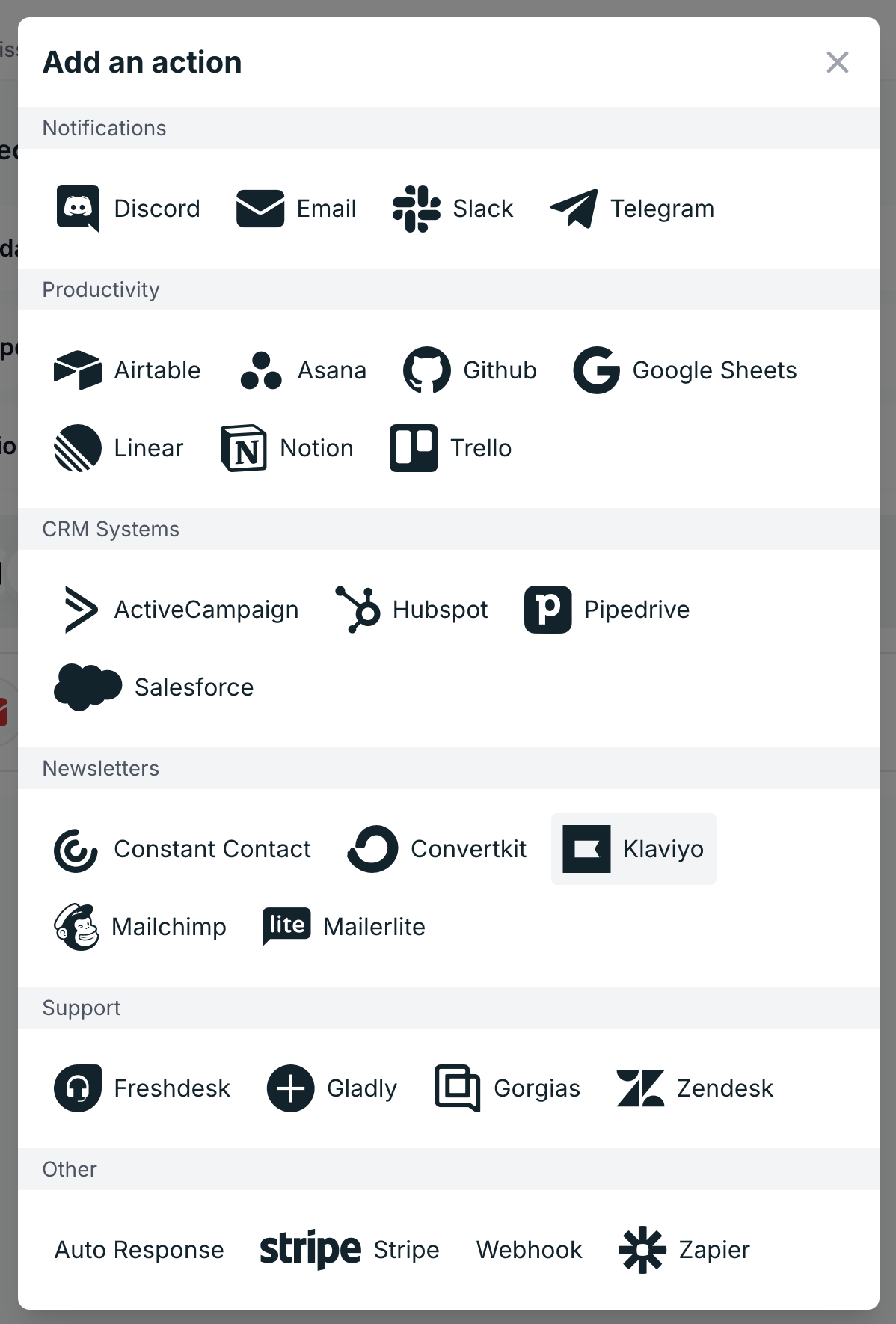
Open your form in the Formspree dashboard and open the Workflow tab. Click the Klaviyo plugin button to start the setup.
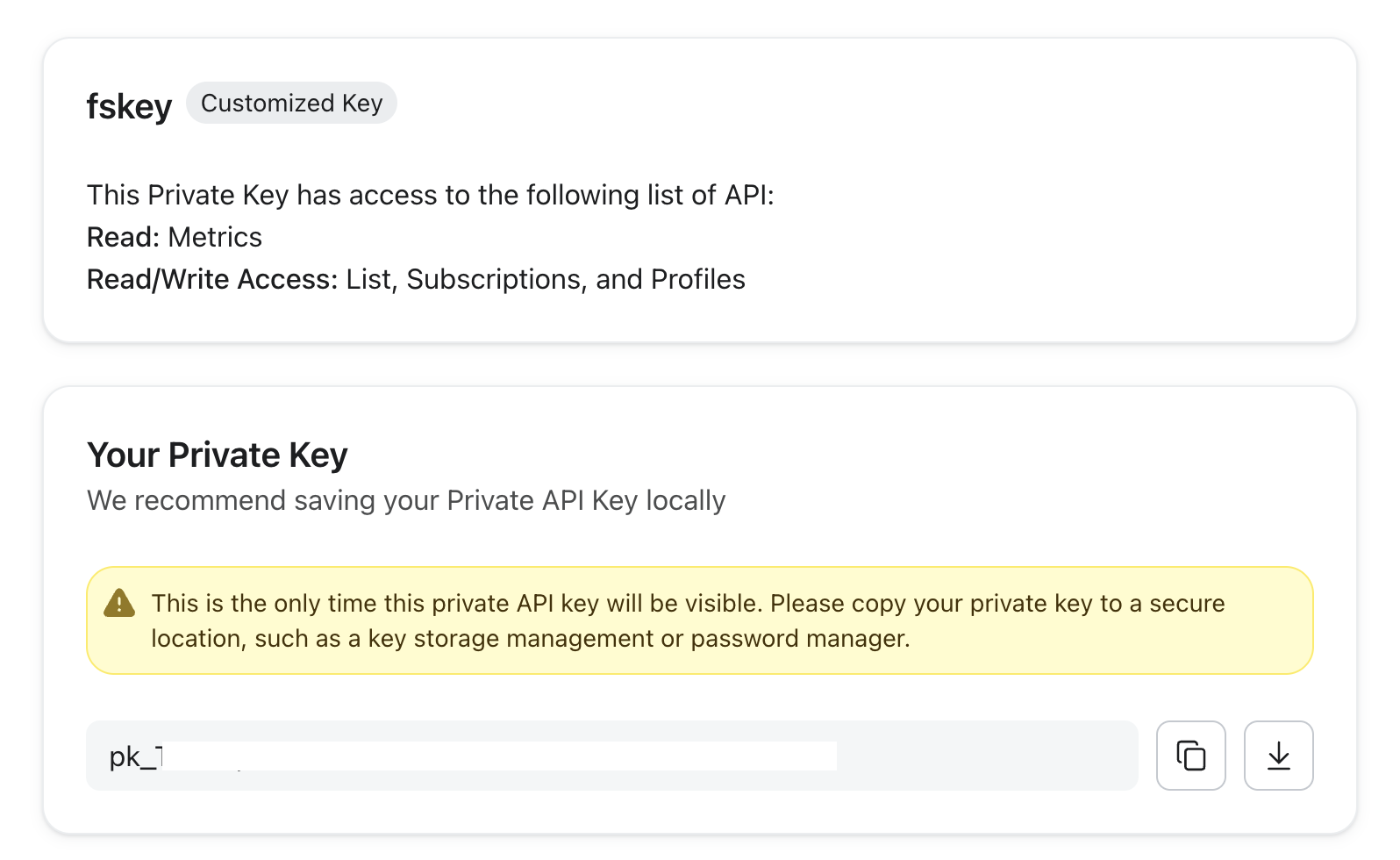
You’ll need a Klaviyo private API key. In Klaviyo, go to Account (bottom-left corner) > Settings > API Keys and create a new private key. The minimum required scopes are metrics:read, lists:write, subscriptions:write, and profiles:write. Copy the key, paste it into Formspree, and click Connect.
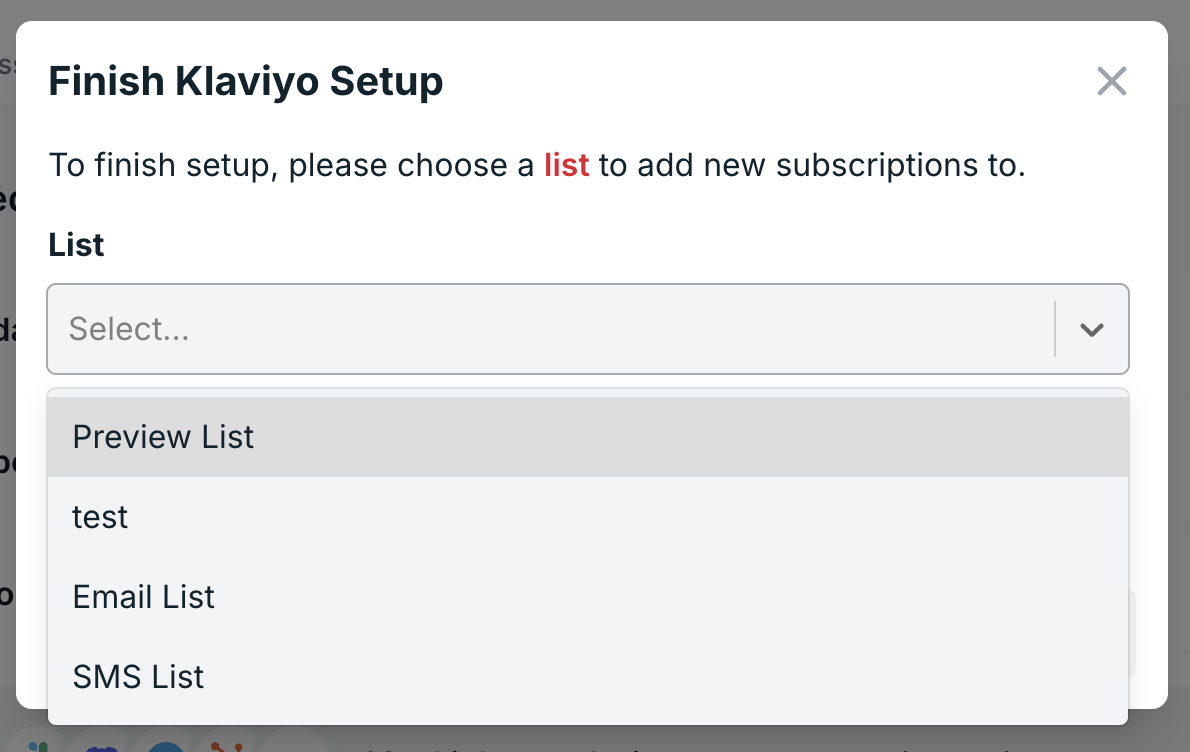
After connecting, Formspree shows a dropdown of your Klaviyo lists. Select the list where wholesale inquiries should land. If you don’t have a dedicated list yet, create it in Klaviyo first. A dedicated list lets you scope flows to wholesale inquiries without those flows running for newsletter subscribers.
Field mapping. Formspree automatically maps a set of standard field names to their Klaviyo profile counterparts. email becomes the profile identifier and deduplication key. firstName and lastName map to the profile’s first and last name. phone maps to phone number. company maps to organization. Any field name outside that standard set becomes a custom profile property under “Properties about this person” on the Klaviyo profile.
The quote_type and monthly_volume fields from this form both land as custom properties. Once a custom property exists on a profile, you can reference it in flow conditional splits, segment filters, and email personalization tokens the same way you’d reference any built-in Klaviyo property.
Deduplication. When a submission arrives with an email address that already exists as a Klaviyo profile, Formspree adds the profile to the selected list but leaves the existing profile properties unchanged. If someone submits in January with quote_type: bulk and submits again in March with quote_type: retail, their Klaviyo profile still shows bulk from the first submission. If your use case involves return inquiries where the intent changes, account for this in your flow logic rather than expecting the profile to reflect the latest submission.
Double opt-in. Klaviyo enables double opt-in by default for all lists. A subscriber added through this integration won’t receive your flow emails until they confirm their email address through the opt-in message Klaviyo sends automatically. For a wholesale inquiry form, that’s the wrong behavior: someone who just requested a quote shouldn’t need to confirm a marketing opt-in before they receive your response. Turn off double opt-in for a specific list in Klaviyo under Lists & Segments > your list name > Settings.
Wiring the flow. Any submission that adds a profile to your “Wholesale Inquiries” list fires a “Subscribed to List” event in Klaviyo. Build a flow with that trigger, select the right list, and add conditional splits on quote_type to send different emails depending on what the person asked about:
  Trigger: Subscribed to "Wholesale Inquiries" list
    |
    +-- If quote_type = "bulk"     → send "Bulk Order Introduction" email
    |
    +-- If quote_type = "dropship" → send "Dropship Program Overview" email
    |
    +-- Default                    → send "General Wholesale Inquiry" email
New subscribers enter the flow from the beginning regardless of when the flow was originally created, so test with a real submission before publishing.
Connecting Slack
Open the Workflow tab in your Formspree dashboard and click the Slack plugin button.
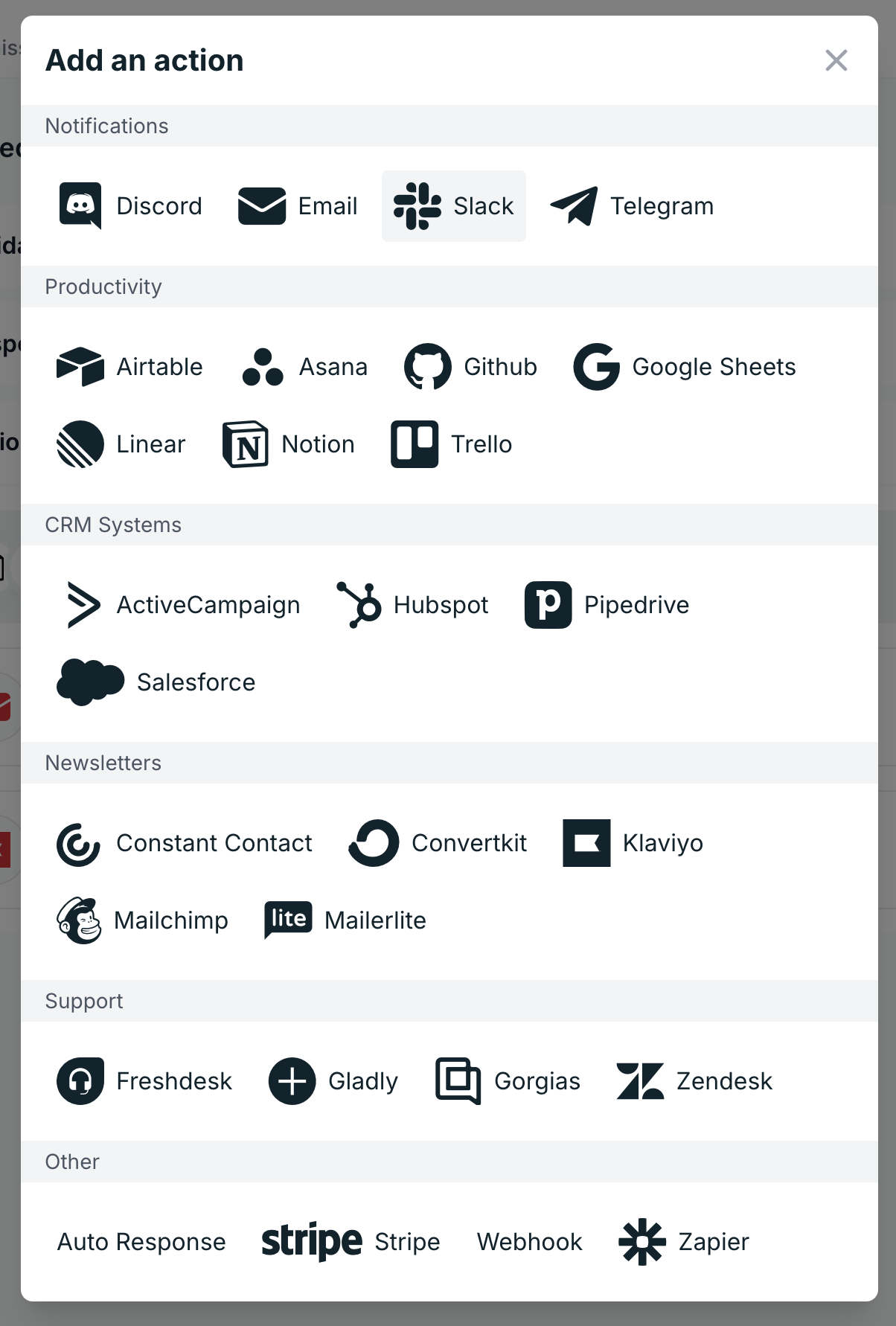
Formspree redirects you through Slack’s OAuth flow. During authorization, you’ll select which channel receives notifications. Pick a channel the right people already watch, not a general channel that everyone has muted. To change the destination channel later, disconnect the plugin and reconnect it, selecting the new channel during the OAuth flow.
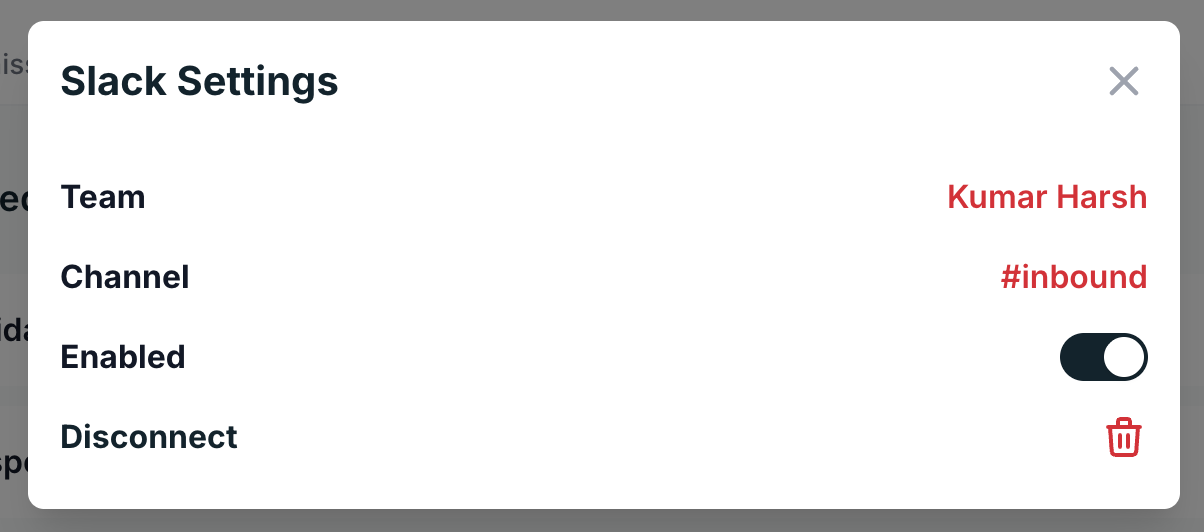
Formspree sends a message to that channel for every submission this form receives, formatted as a card with each field labeled. Because the form includes the hidden subject field with {{ quote_type }} interpolation, the notification header reads “New wholesale inquiry: bulk” or “New wholesale inquiry: retail” rather than a generic form name. That line is enough context for whoever sees it to decide whether to respond within the hour or queue it for later.
The Slack notification is the handoff point. Whoever responds owns the follow-up from there. Log the handoff in a CRM (see the HubSpot version of this stack for how that looks) or track it in the Slack thread. Klaviyo tracks email engagement and profile properties, not pipeline, ownership, or reply history.
Conditional Slack alerts for mixed-intent forms
For a dedicated wholesale inquiry form, every submission warrants a Slack alert. That changes if you also run a newsletter signup or “notify me when back in stock” form on the same site. You don’t want every newsletter subscriber firing into #wholesale-leads.
The cleanest path is two separate Formspree forms: one for wholesale, one for newsletter. Each form has its own Slack plugin config. The newsletter form routes to a low-priority or archival channel. The wholesale form routes to the channel your sales team monitors. The Klaviyo plugin on each form can point to a different list, so the segmentation stays clean on both ends.
When a single form serves multiple intents, use Formspree’s webhook plugin and put the routing logic in your own handler. (For a deeper treatment of channel routing with webhooks, see Slack for Forms: Beginner Setup vs. Advanced Routing.) The webhook fires a JSON POST to your endpoint on every submission, and your handler decides whether to send the Slack alert based on the submitted values. Add the webhook under Workflow > Webhooks in the Formspree dashboard and point it at a serverless function:
  // pages/api/lead-webhook.js
  export default async function handler(req, res) {
    if (req.method !== 'POST') return res.status(405).end();

    // In production, verify the Formspree webhook signature here before
    // reading req.body. See the note below the snippet.

    const { firstName, company, email, quote_type, monthly_volume } = req.body;
    const volume = parseInt(monthly_volume, 10);

    if (isNaN(volume) || volume < 100) {
      return res.status(200).json({ ok: true, notified: false });
    }

    const slackRes = await fetch('https://slack.com/api/chat.postMessage', {
      method: 'POST',
      headers: {
        'Content-Type': 'application/json',
        Authorization: `Bearer ${process.env.SLACK_BOT_TOKEN}`,
      },
      body: JSON.stringify({
        channel: process.env.SLACK_CHANNEL_WHOLESALE,
        text: `High-volume inquiry from ${company}`,
        blocks: [
          {
            type: 'section',
            text: {
              type: 'mrkdwn',
              text: `*${company}* (${firstName}) | ${email}\n*Type:* ${quote_type}\n*Monthly volume:* ${monthly_volume} units`,
            },
          },
        ],
      }),
    });

    // Slack returns HTTP 200 with { ok: false, error } for API-level
    // failures, so check the body as well as the status code.
    const slackBody = await slackRes.json().catch(() => ({}));
    if (!slackRes.ok || !slackBody.ok) {
      console.error('Slack alert failed', slackRes.status, slackBody.error);
      return res.status(502).json({ ok: false, error: slackBody.error });
    }

    res.status(200).json({ ok: true, notified: true });
  }
This function fires the Slack alert only when monthly_volume is 100 or above. Submissions below that threshold still reach Klaviyo through the plugin, but they don’t generate a notification.
The Klaviyo plugin and the webhook plugin run independently. Both fire on every submission. The webhook handles the conditional Slack logic. The Klaviyo plugin handles the subscription regardless of volume.
A note on authenticating the webhook. The snippet above trusts whatever arrives in the request body, which is fine for following along but not for production. The endpoint is public, so anyone who finds the URL can POST a payload with
monthly_volume: 500and a made-up company name, and your sales team gets a convincing-looking alert for a lead that doesn’t exist. Formspree signs every webhook request, and your handler should verify that signature and reject anything that doesn’t match before reading the body. That’s a few lines of HMAC comparison against a shared secret. It’s out of scope for this tutorial, but treat it as required before the handler goes live.
SLACK_BOT_TOKEN and SLACK_CHANNEL_WHOLESALE belong in environment variables, not hardcoded in the function. Formspree stores the submission before the webhook fires, so if your function returns a non-2xx response, Formspree retries the delivery. That’s why the handler returns a 502 when the Slack call fails instead of swallowing the error: the automatic retry covers you without losing the alert. Note that Slack’s chat.postMessage responds with HTTP 200 even for API errors such as channel_not_found or invalid_auth, and signals failure with ok: false in the JSON body. Checking only the HTTP status would report those failures as successes, so the handler checks both.
Testing the full pipeline
Test with a real form submission.
Open the Formspree dashboard, then submit the form using a test email address you control. The submission should appear in the form’s Submissions tab within seconds, regardless of what the downstream systems did.
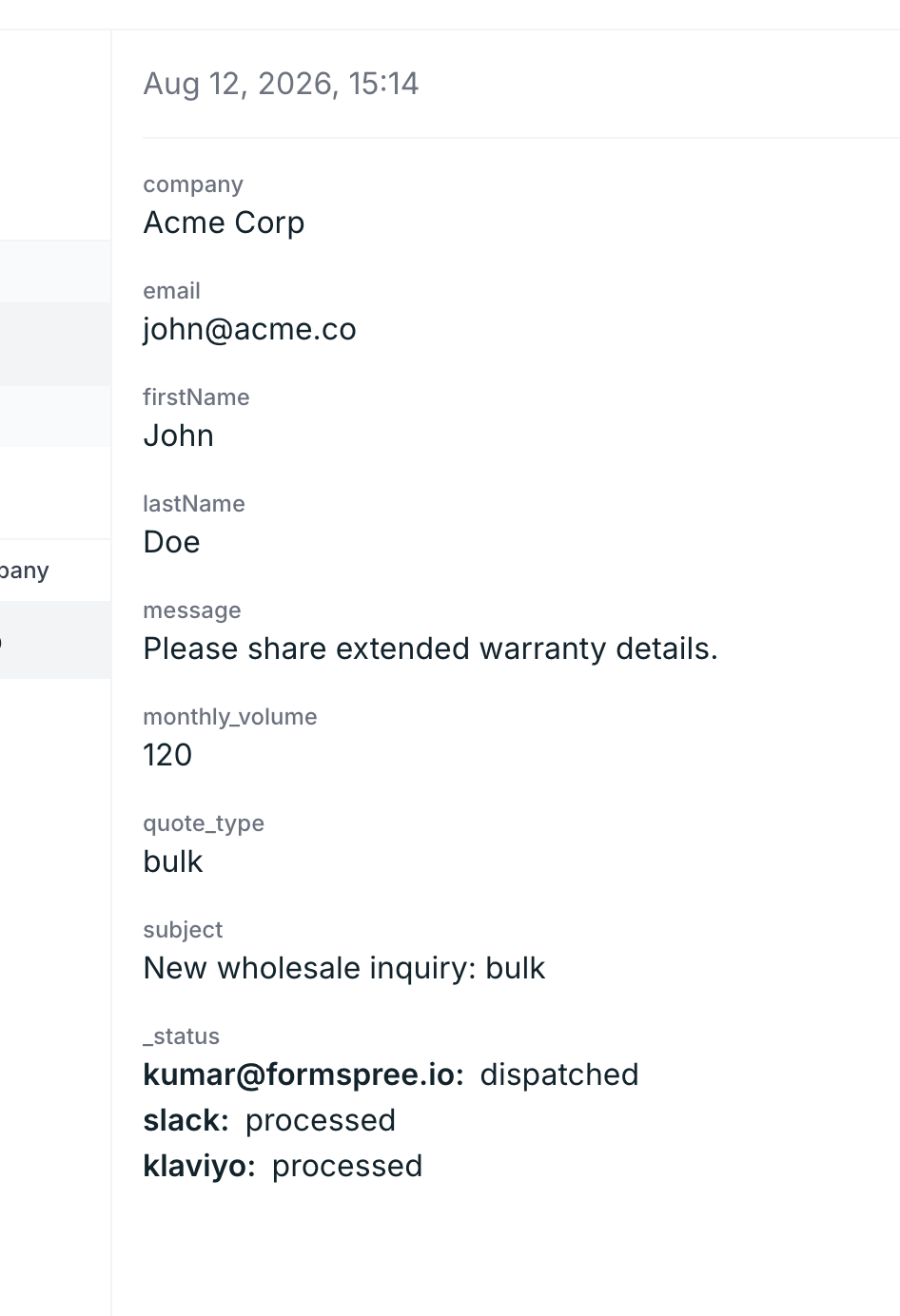
Open Klaviyo and go to Profiles. Search for the test email address.
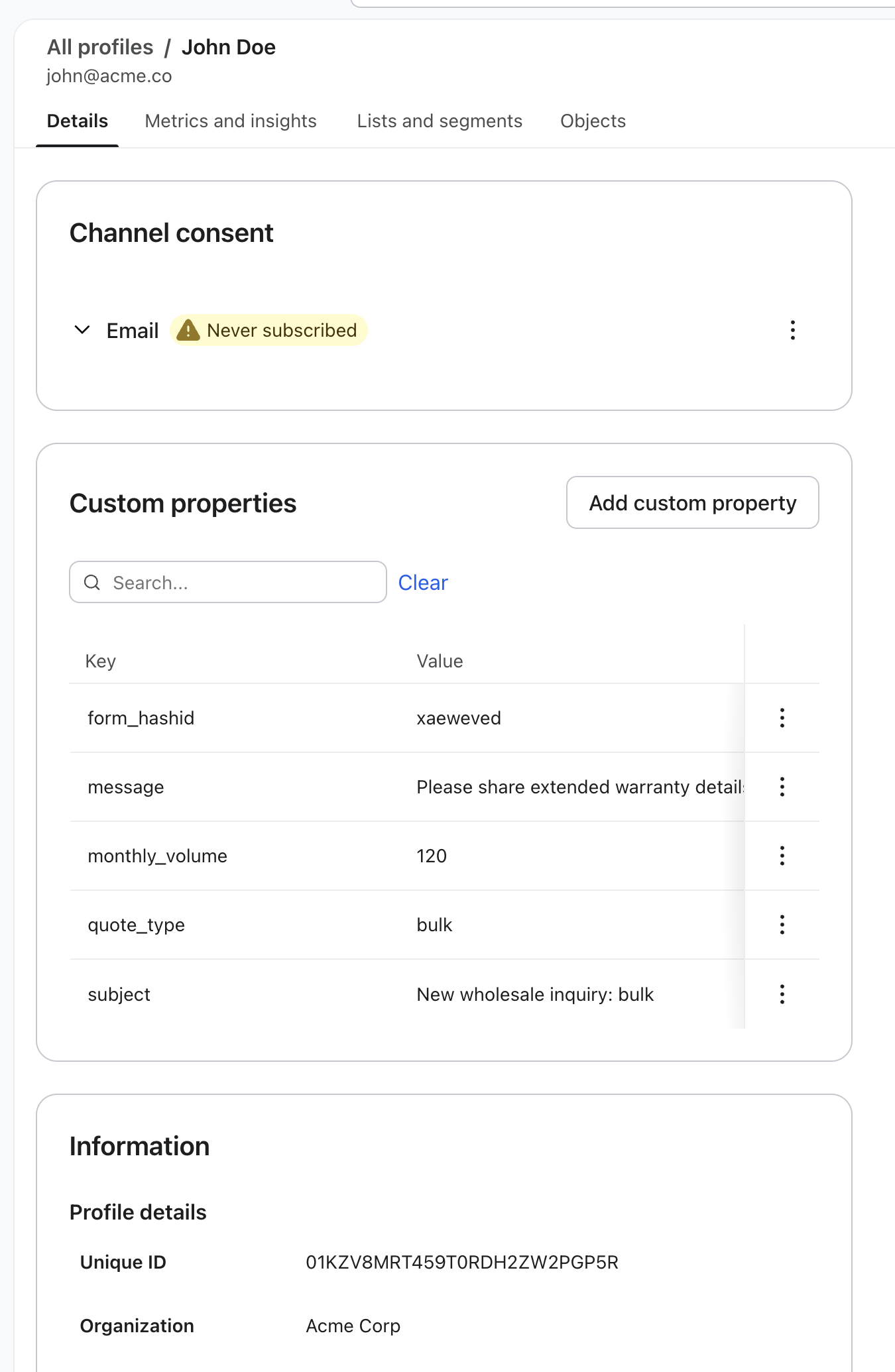
Confirm that the profile exists, that it was added to the right list, and that the custom properties appear under “Properties about this person.” If quote_type or monthly_volume are missing, check that your HTML field names match the property names you’re looking for in Klaviyo. Klaviyo treats monthly_volume and Monthly Volume as different properties.
Check the Slack channel. The notification should have arrived with the correct subject line.
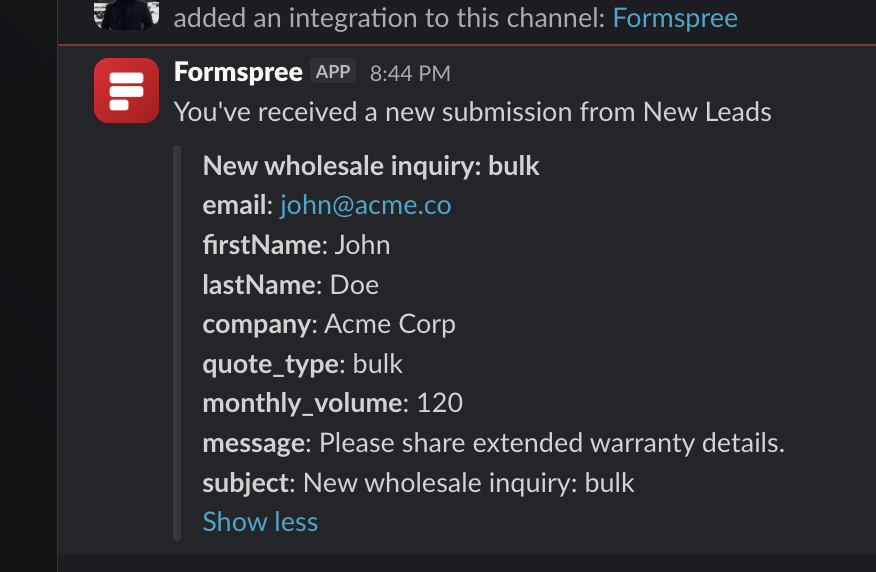
If you’re using the webhook approach, check your function logs to confirm the Slack API call succeeded for submissions at or above the volume threshold, and that submissions below it returned a 200 without triggering the alert.
What you have now
A form you control, a Klaviyo profile created on every submission with the properties your flows need to branch correctly, and a Slack notification that reaches the right people fast enough to act before the automated sequence takes over.
When your Klaviyo flows get more complex (split-testing templates, time-delay sequences, logic that checks purchase history alongside form properties) the form side of this pipeline stays exactly the same. The form collects and routes. Klaviyo handles what happens after that. And whoever sees the Slack alert can respond before the third email in the sequence goes out.
FAQs
How do I connect a custom HTML form to Klaviyo?
Point the form’s action at a Formspree endpoint, then enable the Klaviyo plugin in the form’s Workflow tab with a private API key and a target list. A new subscriber creates a Klaviyo profile and is added to that list; repeat submissions add the existing profile to the list but leave its properties unchanged. No JavaScript or server code is needed.
Can I connect a form to Klaviyo without using Klaviyo’s embedded signup form?
Yes. But, Klaviyo’s built-in signup forms are built in its form editor and rendered by the Klaviyo onsite script, which limits your control over markup, styling, and validation. A custom HTML form submitted through Formspree gives you full control over the form and still lands profiles in Klaviyo with the same list membership and properties.
What is Klaviyo’s Create Client Subscription API, and do I need it?
It’s the POST /client/subscriptions/ endpoint in Klaviyo’s API, designed for browser-side calls authenticated with your public API key as the company_id query parameter. It subscribes a profile to a list and records consent. You don’t need it if you use Formspree: the plugin handles subscription server-side with a private key, and you also get submission storage, spam filtering, and the Slack notification from the same POST.
Should I call Klaviyo’s Client Subscription API from my own JavaScript instead?
You can, but you take on more work. You’ll write the fetch call, handle the revision header Klaviyo requires, add your own spam protection, build a fallback for when the request fails, and wire Slack separately. Klaviyo also states this endpoint is client-side only, so server-side code must use the bulk subscription jobs endpoint with a private key instead. Formspree collapses all of that into one form action.
How do I subscribe profiles to a specific Klaviyo list from a form?
Pick the list in the Formspree Klaviyo plugin setup. Each form maps to one list, so use separate forms for wholesale inquiries and newsletter signups if they should trigger different flows.
Why isn’t my Klaviyo flow sending after a form submission?
The most common cause is double opt-in. Klaviyo lists default to double opt-in, so the profile sits unconfirmed until the person clicks the confirmation email. Switch the list to single opt-in under the list’s Settings > Consent tab. Also confirm the flow trigger is “Subscribed to List” for the same list the plugin targets.
Does the Klaviyo plugin update properties on a repeat submission?
No. A repeat submission from an existing email address adds the profile to the list but leaves existing properties unchanged. If you need the latest values, handle it in flow logic or update the profile from a webhook handler.
Can a Klaviyo form submission also notify Slack?
Yes. Enable the Slack plugin on the same form. Both plugins fire on every submission independently. For alerts that fire only above a volume threshold, add a webhook and put the condition in your handler.