
The Auto-Reply Setup Every Contact Form Needs
Confirm every submission with Formspree's Auto Response action, from a plain-text acknowledgment to a branded HTML email sent from your own domain.
Formspree’s Auto Response action sends a confirmation email to anyone who submits your form, using the address they entered in the email field. You configure it once in the dashboard, and every submission after that gets an acknowledgment within seconds, with no server code and no email provider account on your side.
This article covers the whole feature. You’ll start with the plain-text setup that works on any form with an email field, learn what to put in the message so it does more than say thanks, and then move to a branded HTML template and a custom sending domain when the confirmation needs to match the rest of your email. Every step happens inside the Formspree dashboard.
What an auto-reply does for the sender
A form that returns nothing to its submitter leaves them unsure whether the submission went through, which produces resubmissions and “did you get my message?” emails to any address the sender can find. A confirmation in the inbox closes that loop and keeps most of that traffic out of your support queue.
The confirmation also sets expectations. A line that reads “We reply to sales inquiries within one business day” gives the recipient a reference point, and fewer people follow up two hours later asking for an update.
Confirmations can also carry what the sender needs next. Event registrations can include the meeting link, password, and calendar file. Support submissions can point to the status page and the documentation for the most common questions. Quote requests can explain how pricing works and when to expect it.
The form
Every example in this article uses the same HTML, a plain contact form with one field doing the important work:
  <form action="https://formspree.io/f/YOUR_FORM_ID" method="POST">
    <input type="text" name="_gotcha" style="display:none" />
    <input type="hidden" name="subject" value="New contact form submission" />

    <label>
      Your name
      <input type="text" name="name" required />
    </label>

    <label>
      Email address
      <input type="email" name="email" required />
    </label>

    <label>
      How can we help?
      <textarea name="message" rows="6" required></textarea>
    </label>

    <button type="submit">Send</button>
  </form>
Auto Response needs a field named exactly email. Formspree reads that value as the recipient of the confirmation. Per the auto-response documentation, without it, Formspree doesn’t send an auto-response.
The _gotcha honeypot filters out bots that fill in every field on a form. subject sets the subject line on the notification email that reaches your inbox, which is separate from the auto-response subject the submitter sees.
Turning on Auto Response
Auto Response is available on the Professional and Business plans. Setup takes one screen. Open your form in the Formspree dashboard, go to the Workflow tab, click + Add New under Actions, and select Auto Response.
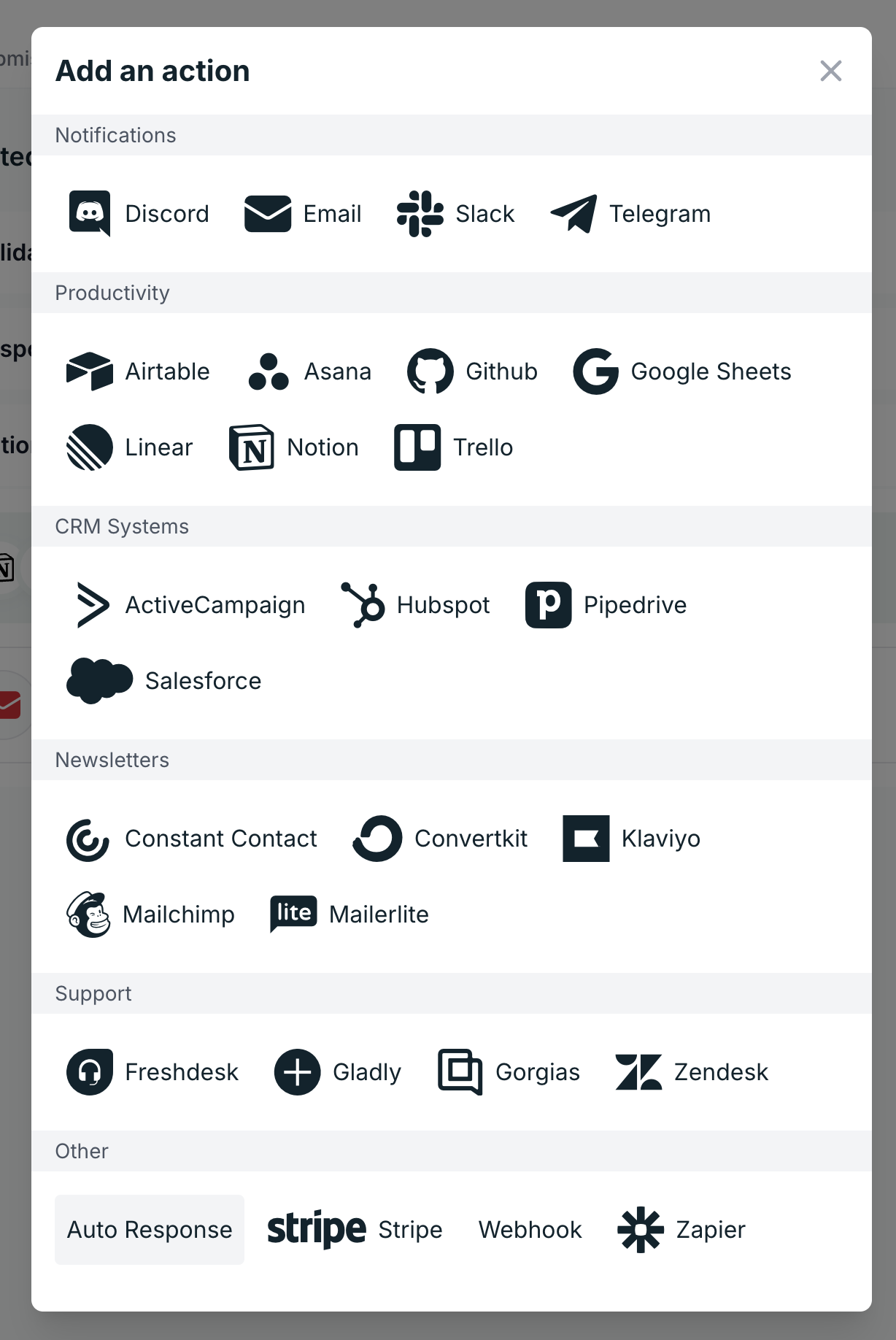
The editor opens with five fields.
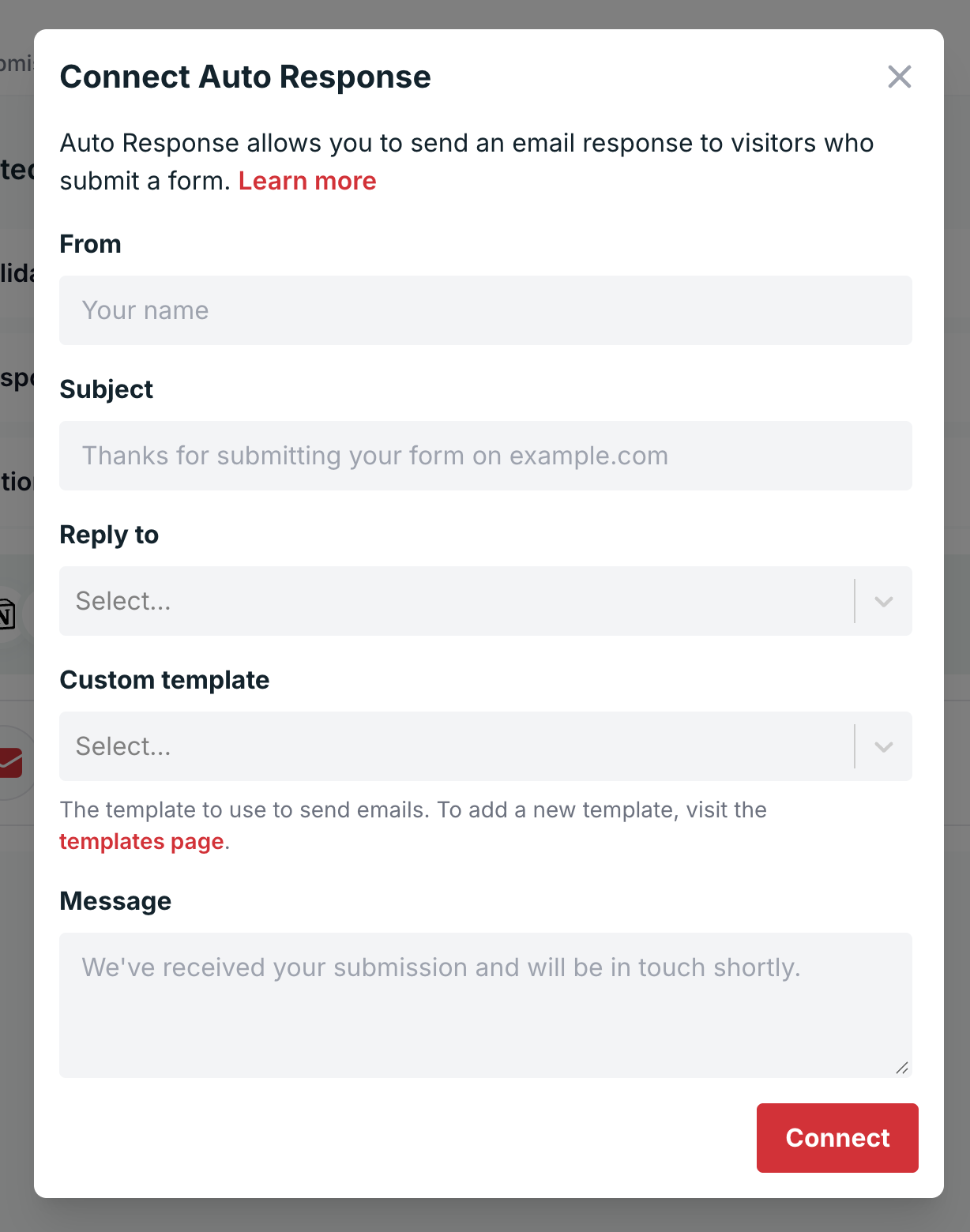
At this point, you need to fill in four fields: From, Subject, Reply to, and Message. Custom template comes up in the HTML templates section below.
From Name is what appears in the recipient’s inbox as the sender. A brand name (“Acme Support”) survives staff changes and matches the tone recipients expect from a transactional email, so use one unless a specific person is expected to reply.
Subject is what the recipient scans before deciding whether to open the email. Make it specific enough that they can tell which form generated the reply without opening it. “Thanks for contacting Acme” or “Your Acme quote request” does the job, while generic phrasing like “We got your message” gets lost among the other transactional emails people get each day.
Reply to is the address email apps use when the recipient clicks Reply, so set it to an inbox your team monitors. People do reply to confirmations with follow-up questions like “Can I change my registration date?”, and when Reply to is set, those replies go to that address instead of the one the email was sent from.
The message is the body of the email itself. Plain text is the default, and the next section covers what to put in it.
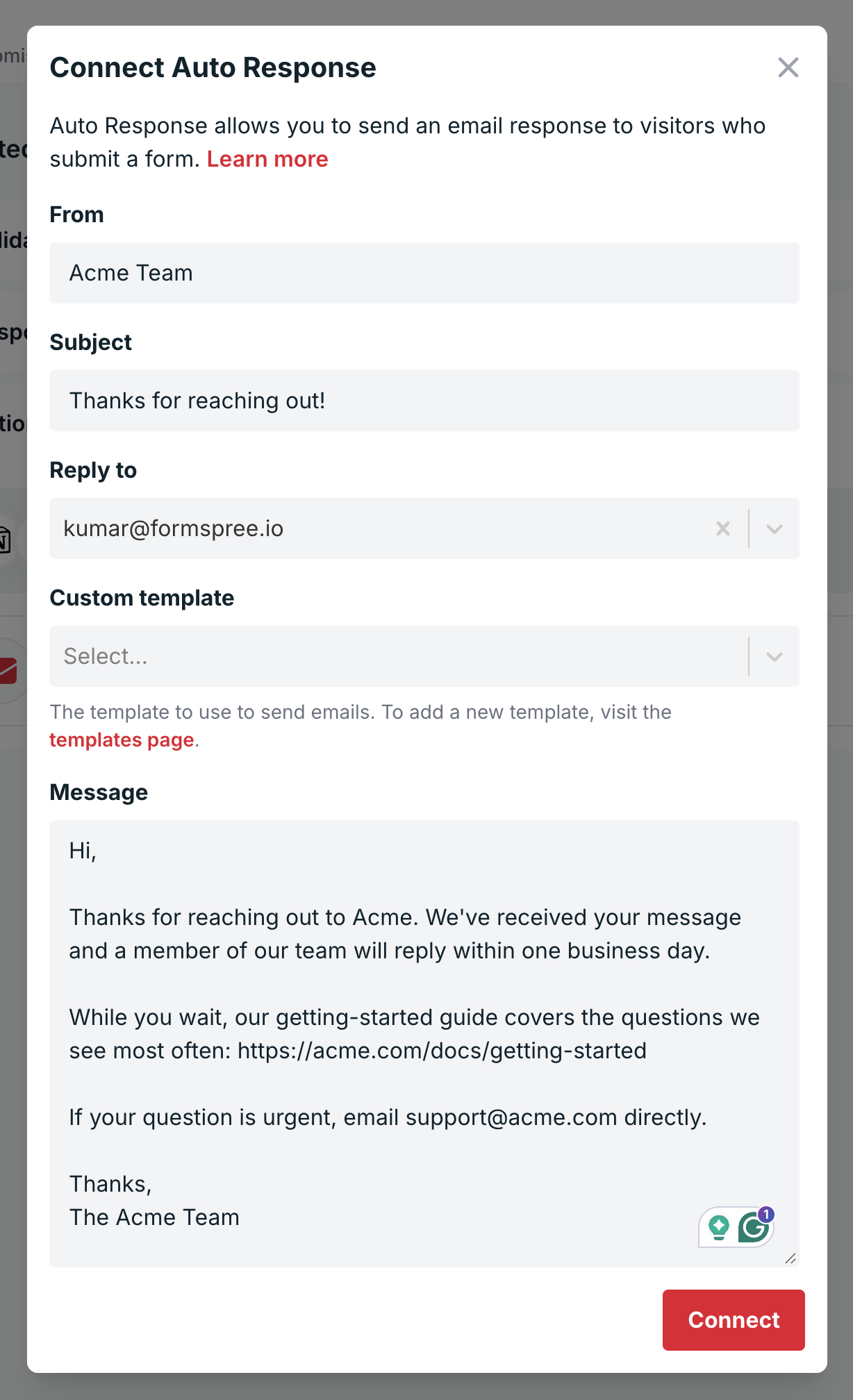
Save the action and submit a test entry using a real inbox you can check. The confirmation arrives within seconds.
Writing a message that earns its send
The tempting default is a one-line “Thanks, we’ll be in touch.” That works for a low-volume contact form on a small site. Once the form has a specific purpose, or enough volume that people start following up, the one-liner creates more work than it saves.
Include four things in every auto-reply:
- What they did. “Thanks for reaching out about our enterprise plan” tells the recipient the email is real and ties it to what they just did on your site.
- What happens next. “A member of our sales team will reply within one business day” tells them when to expect a response.
- What to do in the meantime. A doc link, a pricing page, or a scheduling link prevents the “I never heard back” thread three days later, and gives motivated readers a way to make progress on their own.
- Who to contact if it’s urgent. A monitored inbox or a phone line is the escape hatch for anyone who submitted the wrong form.
The body below covers all four in under a hundred words.
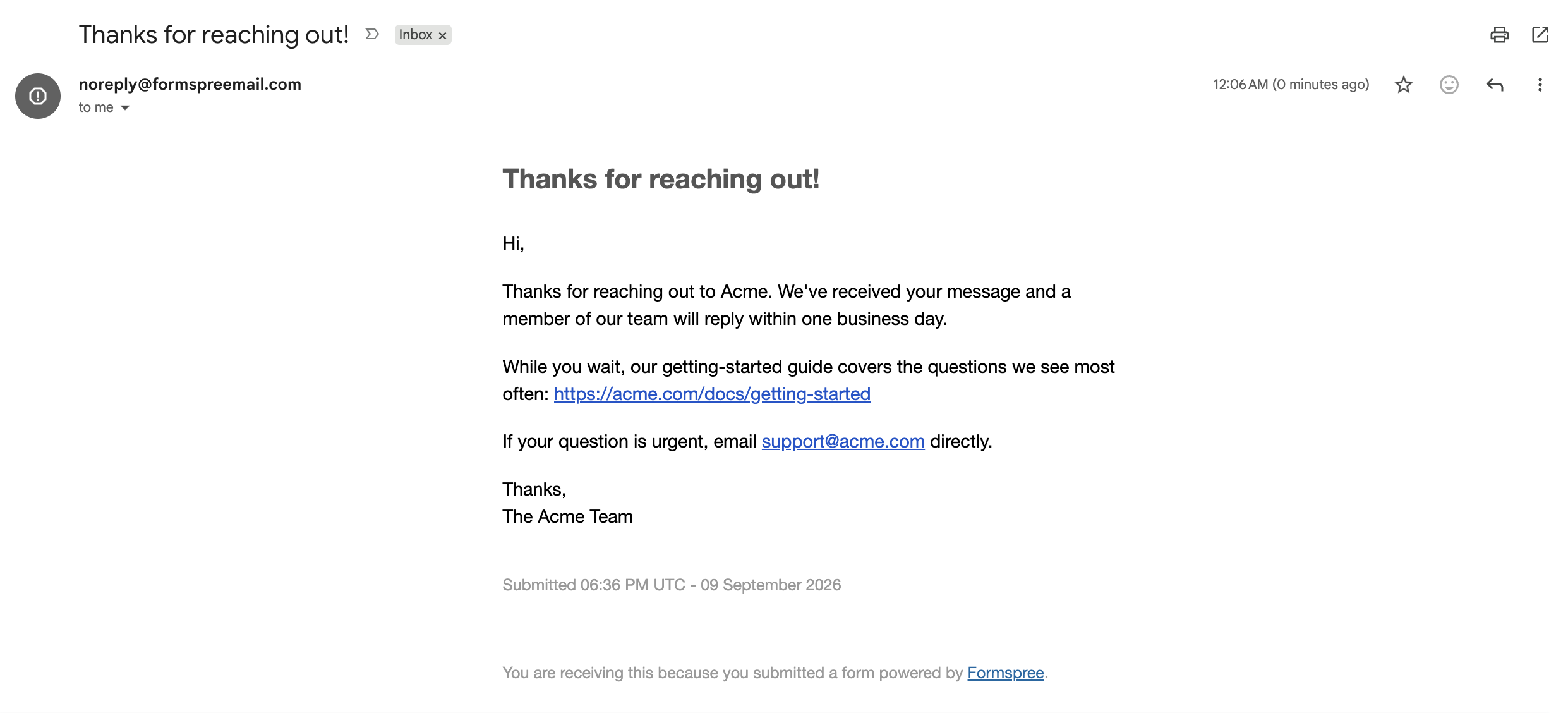
  Hi,

  Thanks for reaching out to Acme. We've received your message and
  a member of our team will reply within one business day.

  While you wait, our getting-started guide covers the questions we
  see most often: https://acme.com/docs/getting-started

  If your question is urgent, email support@acme.com directly.

  Thanks,
  The Acme Team
Here’s how it looks in an inbox:
Match the tone of the rest of your site. A conversational brand that switches to legalese in the confirmation email reads as if two different companies are involved.
One limit shapes everything you write here. The auto-response body can’t include the submitted field values, so there’s no way to greet the sender by name or echo their message back to them. The restriction exists because a form that echoes arbitrary user input to an arbitrary email address is a free relay for spammers, who would fill the message field with their own content and the email field with their target. Write the body as a message that reads well for every submitter, and lean on the subject line and the form’s context to make it feel specific.
Custom HTML templates for branded confirmations
The plain-text editor covers most transactional confirmations. When the confirmation needs to match the visual language of the rest of the brand (logo, brand colors, styled buttons), Formspree supports a custom HTML template that renders as the auto-response body.
Custom templates are available on the Business plan, and the form has to belong to a project. Templates live at the project level, so open the project’s settings and go to the Templates tab to create one. Click +New Template, name it, and choose the auto-response template type. The editor has an HTML tab for layout and copy and a CSS tab for styling, and Formspree inlines the CSS into the HTML at send time. Don’t put <style> and <script> tags in the HTML tab. Click Preview to check the result and Deploy to make it live. Then open the Auto Response action in the form’s Workflow tab and select the template there.
Templates use Mustache syntax, and auto-response templates get two variables. {{ _time }} renders the date and time of the submission, and {{ submission_message }} renders whatever you typed into the Message field of the Auto Response action. That second variable is the useful one, because it lets the template own the layout while the Message field owns the copy. Marketing can restyle the template without touching the words, and support can rewrite the words without touching the HTML. Submission field variables like {{ name }} work in notification templates, but not in auto-response templates for the spam reason above.
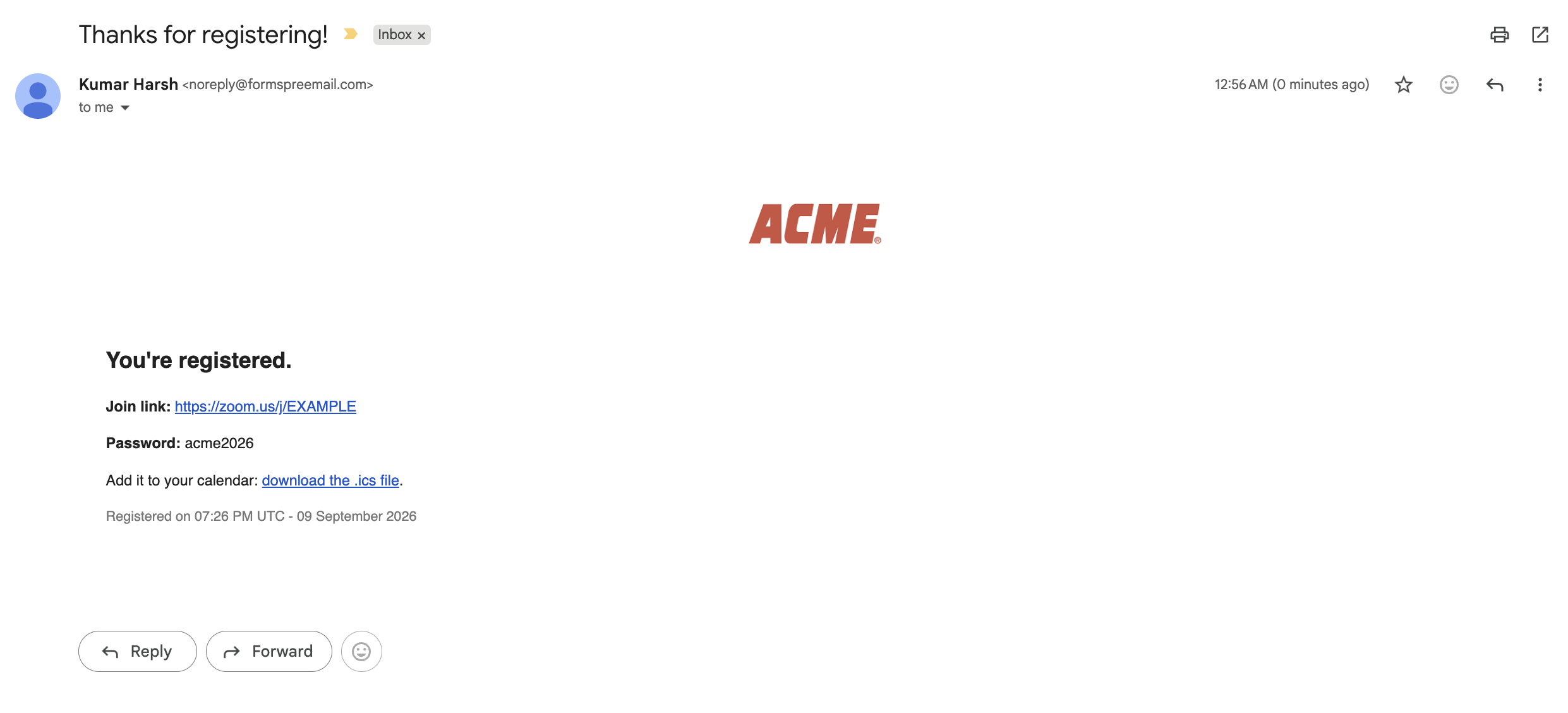
A minimal branded template for a webinar confirmation needs a logo, a headline, the auto-response message, and the static details every registrant receives:
  <table width="100%" cellpadding="0" cellspacing="0" class="wrapper">
    <tr>
      <td align="center" class="header">
        <img src="https://acme.com/logo.png" alt="Acme" width="120" />
      </td>
    </tr>
    <tr>
      <td class="content">
        <h2>You're registered.</h2>
        <p>{{ submission_message }}</p>
        <p>
          <strong>Join link:</strong>
          <a href="https://zoom.us/j/EXAMPLE">https://zoom.us/j/EXAMPLE</a>
        </p>
        <p><strong>Password:</strong> acme2026</p>
        <p>
          Add it to your calendar:
          <a href="https://acme.com/webinar.ics">download the .ics file</a>.
        </p>
        <p class="meta">Registered on {{ _time }}</p>
      </td>
    </tr>
  </table>
The matching CSS goes in the CSS tab.
  .wrapper { font-family: sans-serif; color: #222; }
  .header { padding: 24px; }
  .content { padding: 0 24px 24px; }
  .meta { color: #777; font-size: 12px; }
Formspree inlines your CSS because many email clients strip <style> blocks and only apply styles set directly on each element. Layout is a separate problem. Outlook on Windows renders HTML with Word’s engine and doesn’t support flexbox or grid, so layouts built on them collapse into a single column. Nested tables, like the one above, are boring and render consistently everywhere.
Sending from your own domain
By default, the auto-response goes out from an address ending in @formspreemail.com, with your From Name on top. Formspree’s custom email domain feature, available on the Business plan, switches both submission notifications and auto-responses to send from your domain instead.
Setup happens in two places. Add the domain in your account’s domain settings, and Formspree gives you three CNAME records to publish in your DNS. Those records handle DKIM signing and SPF authentication, which tell receiving mail servers that Formspree is authorized to send on behalf of your domain. Once the domain is verified, open the project’s settings and select the verified domain so the project’s forms use it.
Leave the records in place after verification. Without them, your emails fail authentication checks and are likely to land in spam. Formspree updates the records automatically when DKIM or SPF details change, so you never need to edit them. If your domain already sends email through SendGrid, use a subdomain like forms.example.com.
Recipients reply to auto-responses with follow-up questions like “Can I change the registration date?” Set Reply to on the Auto Response action to a monitored inbox, then send a test confirmation to an address you control and click Reply. Email apps address the reply to the Reply-To address when one is set, not the From address, so that is the address to check. Also include a monitored contact address in the message body so recipients always have a way to reach you.
Debugging when the auto-reply doesn’t arrive
Check the Formspree dashboard first. Every submission is stored regardless of whether the auto-response was sent, so a submission that shows up in the dashboard with no email delivered narrows the problem to the auto-response action.
The common causes, in rough order of frequency:
- No field named
emailon the form. Formspree needs the exact stringemailas the field name.email_address,Email, anduser_emailall fail. Rename the field. - The address has a typo. A misspelled domain like
gmial.comis still a valid address, so Formspree stores the submission and sends the confirmation, which then bounces. A malformed address never gets that far: Formspree rejects the submission and returns an “Invalid replyTo/email address” error, which also happens if the form has more than one input namedemail. - Auto-response is enabled on a different form. The action is configured per form, so a copy-pasted form on a new page doesn’t inherit the previous form’s actions. Check that the action exists in the Workflow tab for the specific form you’re testing.
- The recipient’s provider filed the confirmation as spam or promotions. Check the spam and Promotions folders on your test address. If confirmations consistently miss the primary inbox, verify a custom domain so the email carries your DKIM signature and SPF authorization. Custom domains require the Business plan.
Beyond contact forms: where Auto Response earns its keep
On some forms, the confirmation is the whole point.
Event registration is the clearest case. The confirmation carries the join link, the password, and the calendar file, and the organizer avoids spending the day before the event answering “what’s the Zoom link?” emails. Everything in that email is the same for every registrant, which is exactly what Auto-response handles well.
Downloads and gated content work the same way. A whitepaper request form sends the download link in the confirmation, and the link is identical for everyone who asks.
Support and quote requests get a confirmation that sets expectations and points to self-serve resources. Since the body can’t include the sender’s submission, a reference number or a copy of the request has to come from somewhere else, and the next section covers that.
When to graduate to a transactional email service
Auto-response covers a single templated email, identical for every submitter, tied to a form submission. It runs out of room in four situations:
- The email needs to contain anything the sender typed. A personalized greeting, an echo of the quote request, or a reference number derived from the submission all require the field values, which the Auto-response can’t access.
- The confirmation is the first step in a sequence (submit form, verify email, welcome email, day-3 nudge). A transactional email provider like Postmark or Resend triggered by a Formspree webhook handles the sequence, and Auto Response handles only the immediate acknowledgment.
- The email content depends on data outside the form (inventory levels, account status, a payment result). That needs a webhook to your own code so the content can be built at send time.
- You need per-recipient bounce, open, or click tracking. Auto-response doesn’t report those metrics.
The next step stays inside Formspree. Configure a Simple Webhook in the Workflow tab under Actions, and have the webhook handler call the transactional provider’s API with whatever content you want to send. The webhook payload carries every submitted field, so your handler can build the personalized email that Auto-response can’t. Auto-response can stay enabled alongside the webhook when the immediate acknowledgment still adds value.
Where to start
Add the email field to your form if it is not already there. Open the Workflow tab, click + Add New under Actions, select Auto Response, fill in the From, Subject, Reply to, and Message fields, and submit a test entry from an inbox you can check. That’s the whole feature in its plain-text form.
When the plain-text body starts looking out of place next to the rest of your email, move the form into a project, build a template in the project’s Templates tab with {{ submission_message }} where the copy goes, and select it in the Auto Response action. The form HTML stays as it is.
FAQ
Does Formspree send an auto-reply to form submitters?
Yes, through the Auto Response action in the form’s Workflow tab. It’s available on the Professional and Business plans.
How do I set up an auto-reply in Formspree?
Open the form in the dashboard, go to the Workflow tab, click + Add New under Actions, and select Auto Response. Fill in the From, Subject, Reply to, and Message fields, save the action, and Formspree sends the response for every submission that includes an email field.
Which Formspree plan do I need for auto-response emails?
Professional or Business for the Auto Response action. Custom HTML templates and custom sending domains require the Business plan.
What field does the form need for auto-response to work?
A field named exactly email. Formspree reads that value as the recipient. Without it, Formspree doesn’t send an auto-response.
Can I personalize the auto-reply with the submitter’s name?
No. Submission fields can’t be included in the auto-response message, as a spam prevention measure. The only variables available in an auto-response template are {{ _time }} and {{ submission_message }}. To send a personalized email, use a webhook to a transactional email provider.
Can I send an HTML email as the auto-reply?
Yes, through a custom template. It requires the Business plan and a form that belongs to a project. Build the template in the project’s Templates tab and select it in the Auto Response action.
What email address does the Formspree auto-reply come from?
An address ending in @formspreemail.com by default, with your configured From Name. With a verified custom domain on the Business plan, auto-responses are sent from your domain instead.