
How Freelancers Use Formspree + Pipedrive to Manage Client Inquiries
Send every inquiry from your portfolio's contact form to Pipedrive as a lead with the person, budget, project type, and start date already filled in.
If you’re a freelancer, your sales pipeline probably lives in your inbox, and an inbox doesn’t have stages. A $500 logo request and a $40,000 rebuild show up as the same unread email. To figure out which one’s worth your time, you open the thread, reread the brief, and try to remember whether you already replied. The busier you get, the less that happens, and busy is exactly when you need the next project lined up.
In this article, we’ll help you move that pipeline out of your inbox. You’ll connect the contact form on your site to Pipedrive, so every inquiry shows up in the Leads Inbox as a lead with the person, company, budget, project type, and start date already filled in. From there, you can label it, convert it, and follow up on schedule. Formspree’s Pipedrive plugin handles this with an API token, a currency, and two switches. If you want the project brief saved as a note, a follow-up task on a plan without Automations, or your own routing logic, a webhook takes over. The form HTML is the same either way, and you won’t need Pipedrive’s Web Forms, which are a paid add-on on the plans most freelancers use.
Why a Formspree form and not Pipedrive’s Web Forms
According to Pipedrive’s plan comparison, Web Forms come with the LeadBooster add-on. That’s a paid extra on the Lite and Growth plans, and it’s only included on Premium and Ultimate. API access comes with every plan, and that’s what Formspree’s plugin uses. So even on Lite, you get website-form-to-lead without paying for an add-on.
Web Forms are also styled in Pipedrive’s editor, with a fixed set of field types. A Formspree form is your own HTML and CSS on your own site, so it matches the rest of your portfolio.
The inquiry form
You’ll use one form for both setups. Formspree’s Pipedrive plugin documentation lists the minimum: inputs named email and name (or firstName and lastName). Everything else is there to make the lead useful the moment it lands.
  <form action="https://formspree.io/f/YOUR_FORM_ID" method="POST">
    <input type="text" name="_gotcha" style="display:none" />
    <input type="hidden" name="subject" value="Website inquiry" />
    <input type="hidden" name="tags" value="website,inquiry" />

    <input type="text" name="name" placeholder="Your name" required />
    <input type="email" name="email" placeholder="Email" required />
    <input type="text" name="company" placeholder="Company" />
    <input type="tel" name="phone" placeholder="Phone (optional)" />

    <select name="Project type" required>
      <option value="">Project type</option>
      <option value="Brand identity">Brand identity</option>
      <option value="Website">Website</option>
      <option value="Web app">Web app</option>
      <option value="Retainer">Retainer</option>
    </select>

    <select name="value" required>
      <option value="">Budget</option>
      <option value="1500">Under $2,000</option>
      <option value="5000">$2,000 to $8,000</option>
      <option value="15000">$8,000 to $20,000</option>
      <option value="40000">$20,000 and up</option>
    </select>

    <label>
      Ideal start date
      <input type="date" name="Start date" required />
    </label>

    <textarea name="message" rows="5" placeholder="Tell me about the project"></textarea>
    <button type="submit">Send inquiry</button>
  </form>
_gotcha is Formspree’s honeypot. People never see it, but bots fill it in, and when it has a value, Formspree files the submission under Spam and skips the form’s actions, so it never reaches Pipedrive. The plugin uses subject as the lead title, and a static value like “Website inquiry” keeps your Leads Inbox easy to scan. tags become lead labels. The plugin only applies labels that already exist, so create website and inquiry in Pipedrive before you test. It also adds a formspree label to every lead, and it creates that one for you. company becomes the organization, and if Pipedrive already has one with that name, the plugin reuses it.
The budget dropdown is named value because that’s where the plugin gets the lead value, once you turn on “Allow variable lead value.” The option values are plain numbers, since our special fields reference notes that the currency comes from the plugin, not the form. You set it in the plugin’s Currency setting.
Project type and Start date are Pipedrive custom fields. The plugin matches them by name, so each input’s name has to match the field’s name exactly. It supports Multiple Options, Single Option, Text, Numeric, Monetary, Time, and Date fields. For option fields, submit the option’s name. If the value isn’t one of the options, the plugin just skips that field. A value of the wrong type is a bigger problem: the lead doesn’t get created, Formspree flags the submission with a warning and shows Pipedrive as retrying, and each retry can leave behind another copy of the person. The usual culprit is an optional date field, since an empty date input still submits an empty value. That’s why the form above makes Start date required. Either way, every submission still lands in your Formspree dashboard.
The plugin doesn’t send message to Pipedrive, so with the plugin alone, the project brief stays in your Formspree dashboard. The webhook setup later in this article pins it to the lead as a note.
Plugin setup
The Pipedrive plugin is available on the Professional and Business plans. Before you connect it, create the two custom fields and the website and inquiry labels in Pipedrive (the next section shows where). Then open the form in Formspree, go to the Workflow tab, click + Add New under Actions, and select Pipedrive.
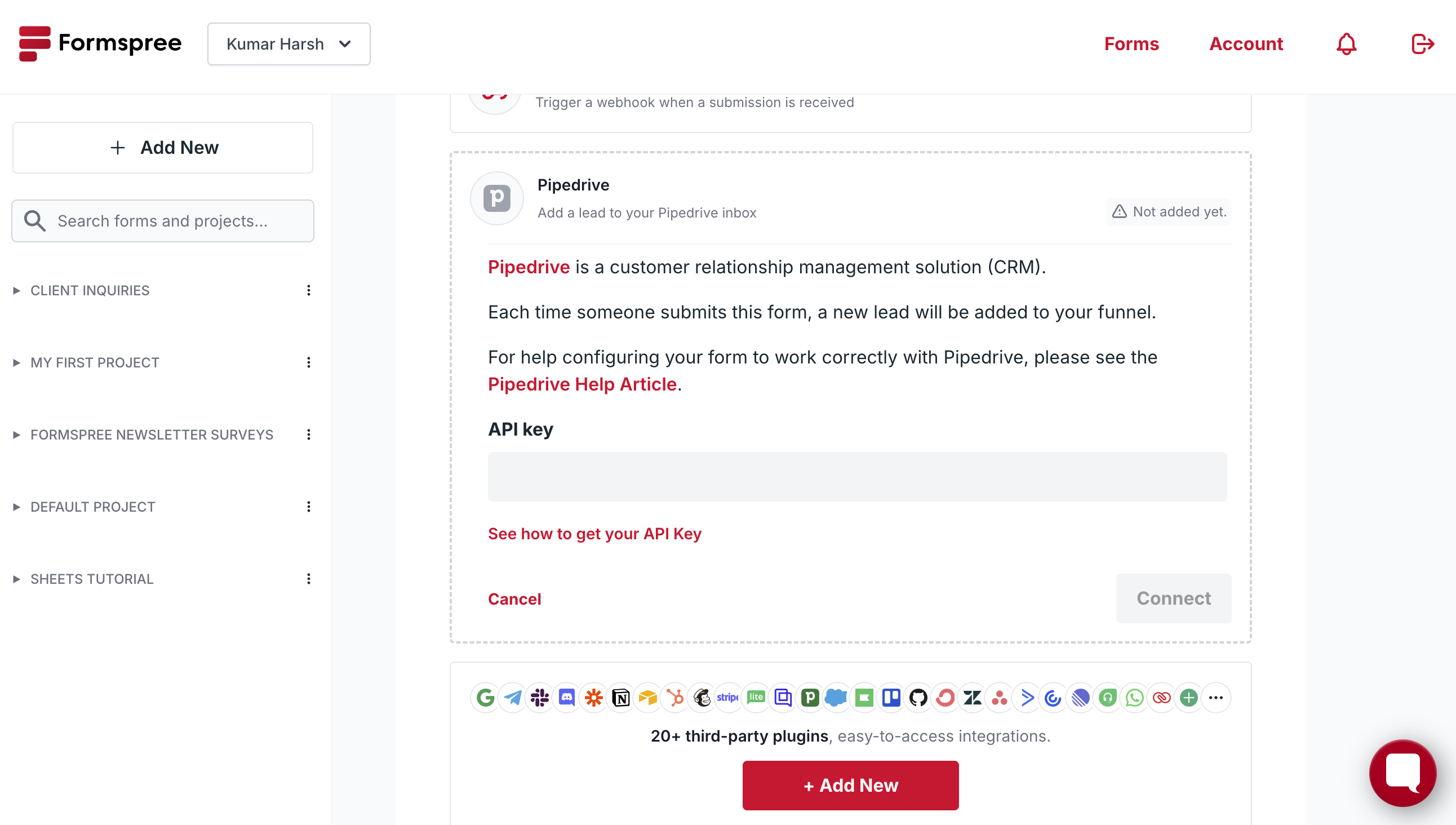
Formspree asks for an API key, which Pipedrive calls your personal API token. To find it, click your account name at the top right in Pipedrive, then go to Company settings > Personal preferences > API.
One thing to know: you only get one active API token per company. If you generate a new one, Pipedrive warns that every integration using the old token stops working, and that includes Formspree. Treat the token like a password you set once and leave alone.
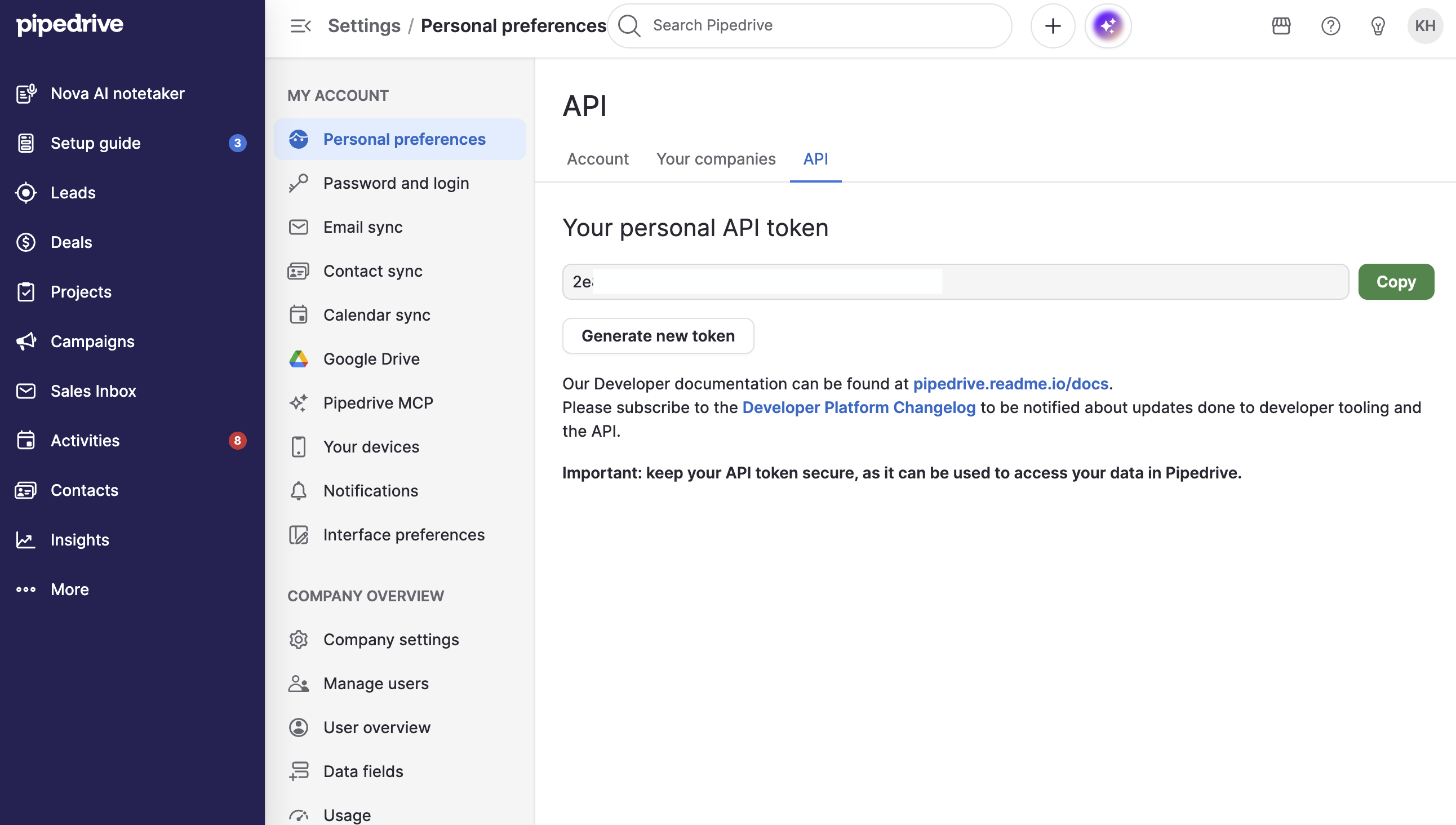
Paste in the key, and the plugin shows your Pipedrive domain, a Currency setting, and a default Lead value. The Connect button stays grayed out until the Lead value is above zero, so enter a placeholder like 1000.00.
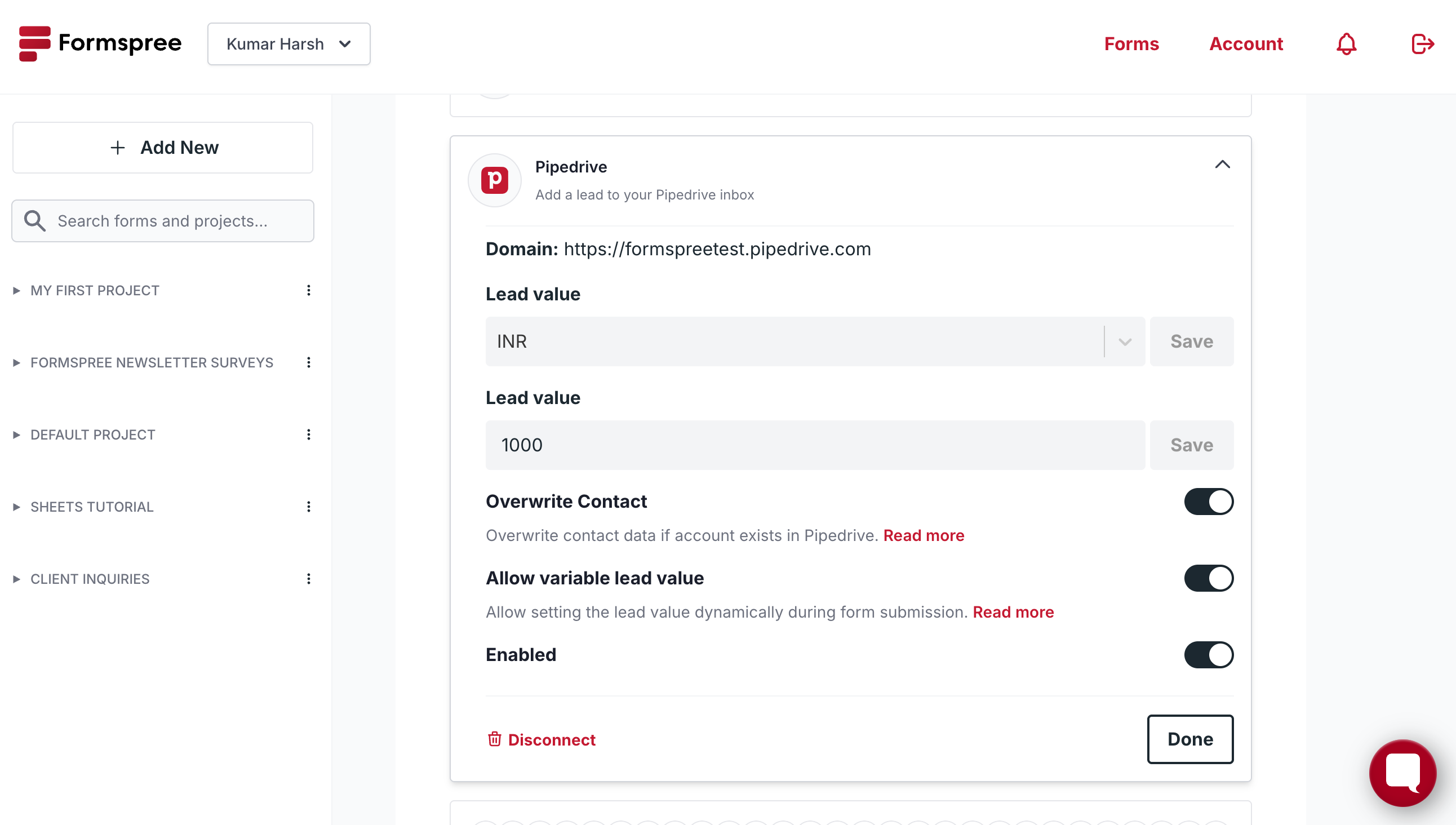
Below that are two options. Overwrite Contact updates an existing contact’s details with the new submission when it finds a match by email or name. Allow variable lead value lets the form’s value field set the lead’s value instead of the default. Turn both on and click Connect.
Now send a test inquiry. A lead titled “Website inquiry” shows up in the Leads Inbox, linked to a person and organization, labeled formspree, website, and inquiry, with the budget as its value and both custom fields filled in. Send a second one from the same email, even with different capitalization, and the new lead attaches to the same person and organization, so a returning client’s history stays in one place.
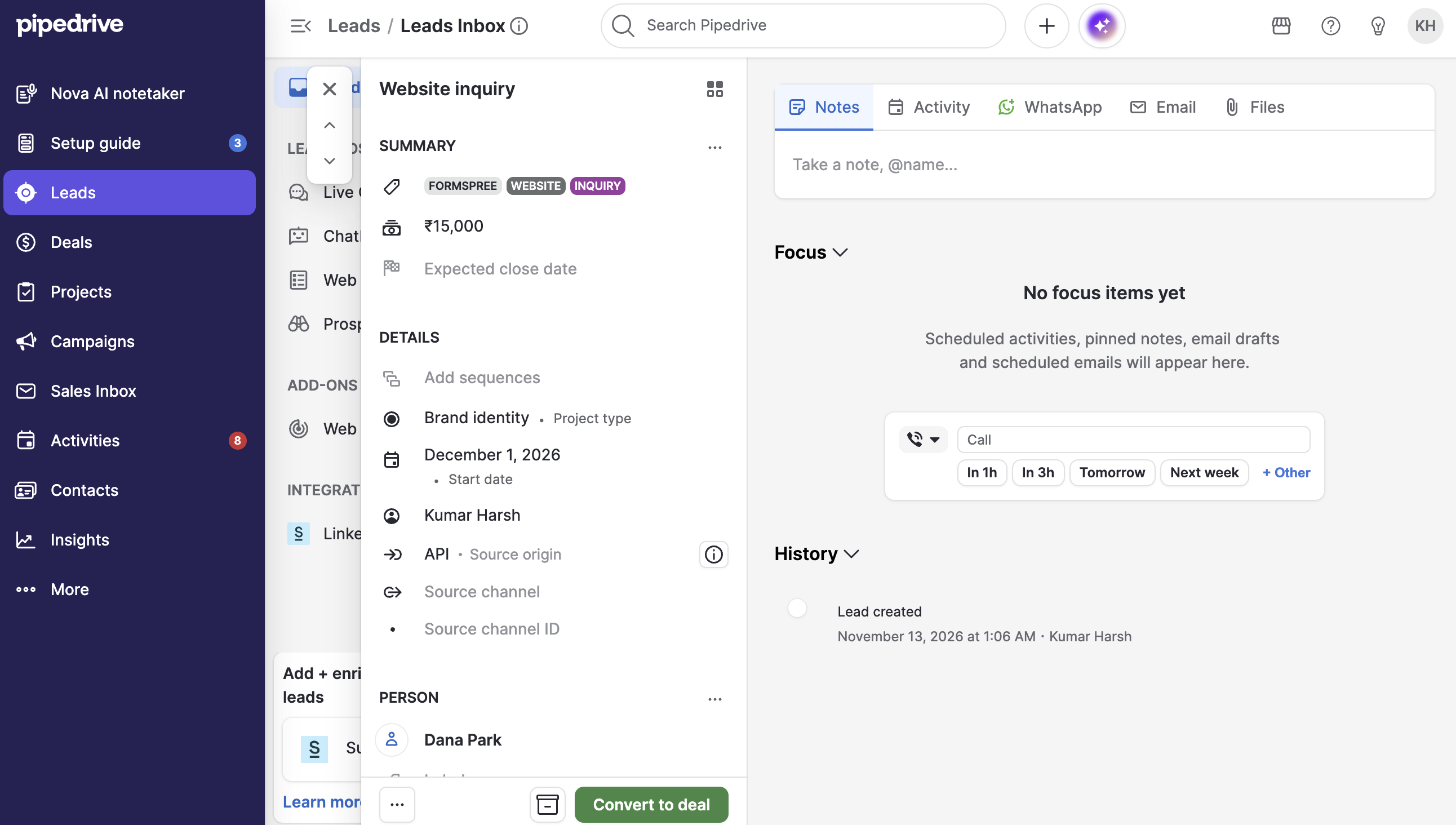
Set up Pipedrive for follow-up
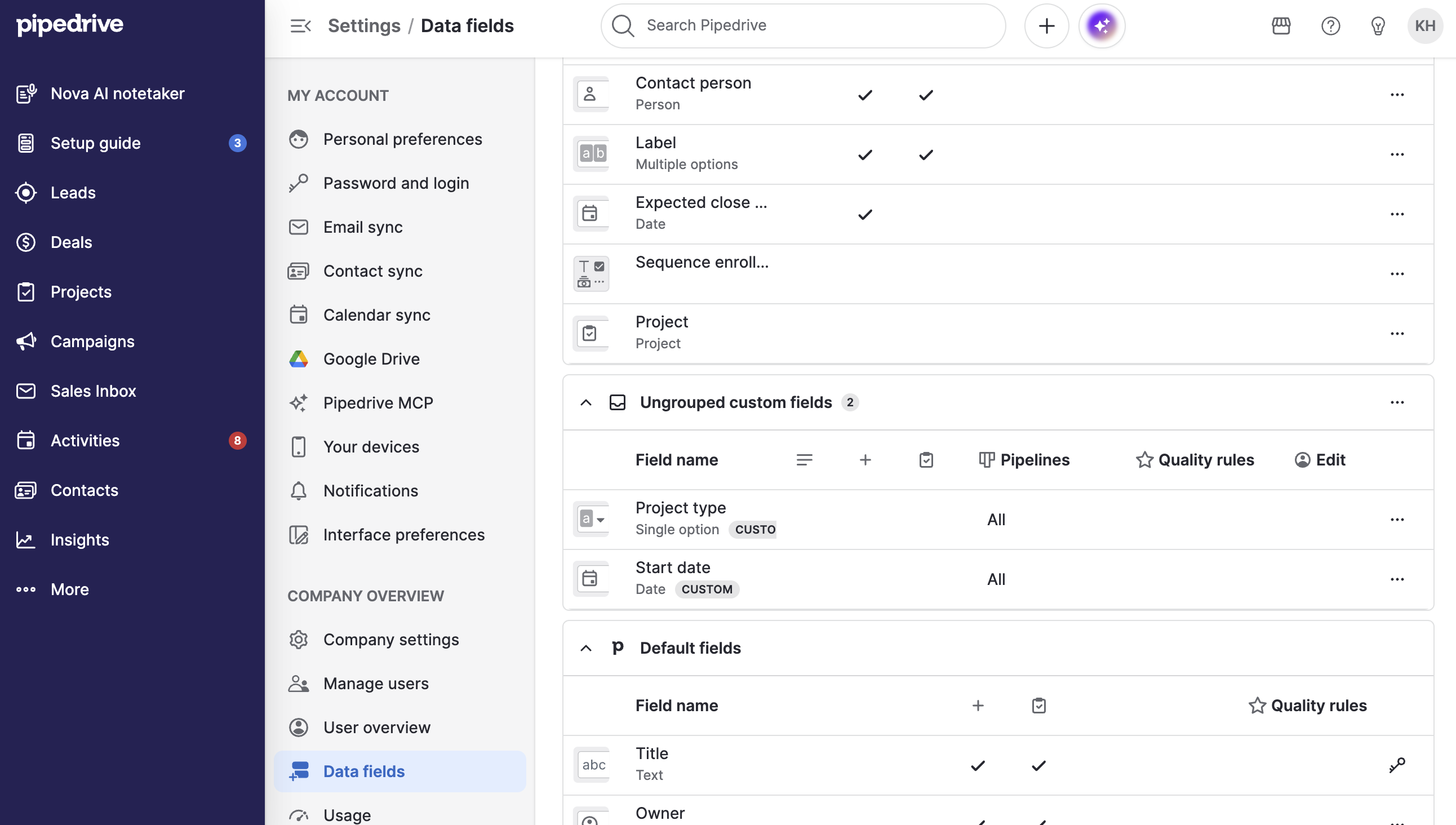
Start with the custom fields. In Pipedrive, go to Company settings > Data fields and pick the Lead/deal tab. Both Pipedrive’s custom fields documentation and the Leads API reference confirm that leads use the same custom fields as deals, so anything you create here shows up on both.
Name them exactly like the form’s name attributes, since the plugin matches by name. Make Project type a single option field with the four project types as options, and make Start date a date field.
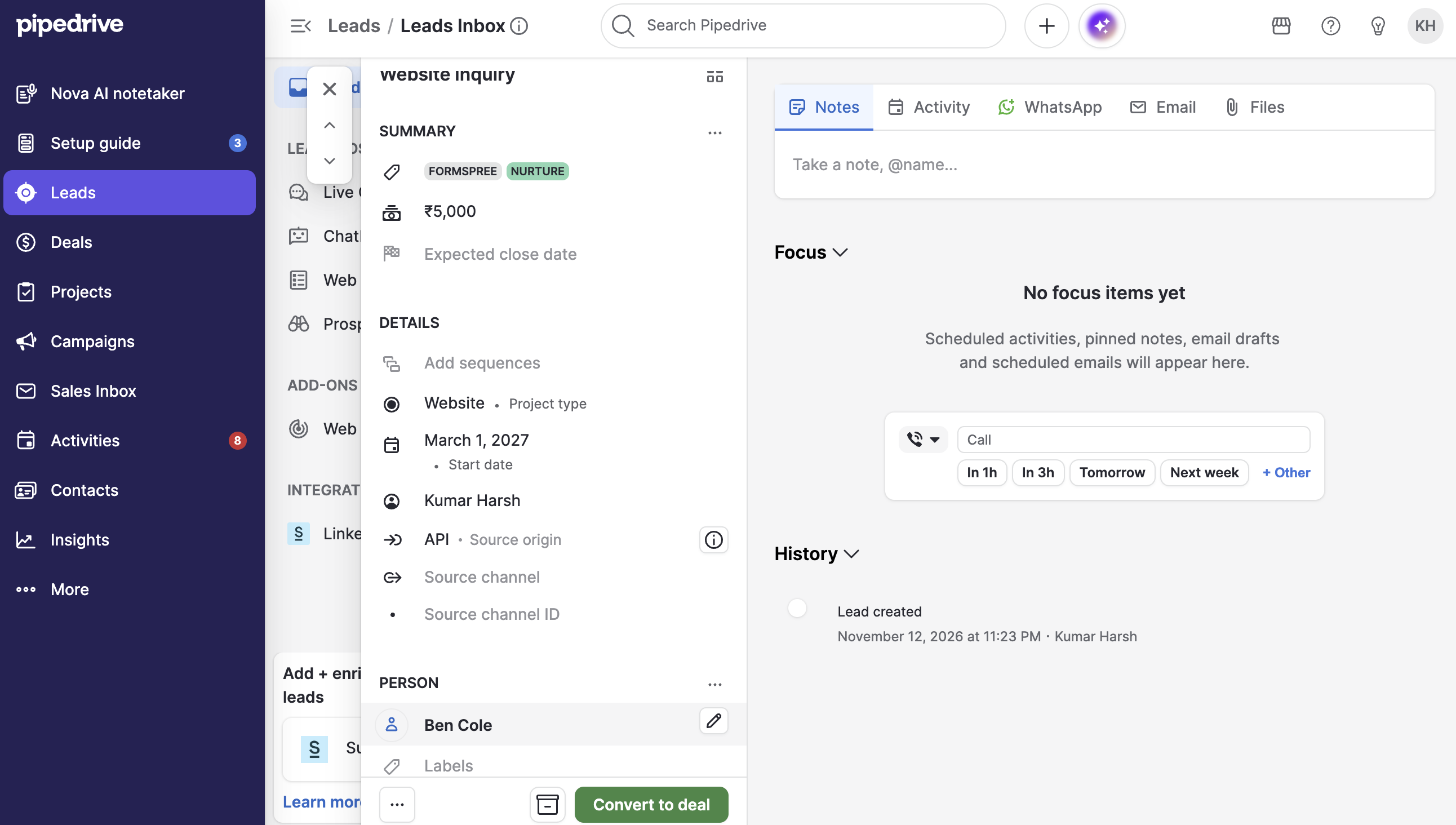
Think of the Leads Inbox as triage. Pipedrive’s Leads Inbox documentation describes it as the place for unqualified leads, and Convert to deal moves one into your pipeline once it’s real. For a freelancer, the inbox is “inquiries I haven’t replied to,” and the pipeline is “projects I’m quoting.”
Pipedrive comes with Hot, Warm, and Cold lead labels. Add Nurture and Referral so you can sort at a glance: Hot for budgets at or above your minimum, Nurture for everything below. You create and filter labels in the Leads Inbox, from the All labels dropdown and its Add new label option. Create website and inquiry there too. The plugin only applies the labels in your form’s tags field, plus its own formspree label, and those are fixed in your HTML. So with the plugin, you’ll add Hot, Nurture, and Referral yourself or with an automation.
Keep your pipeline to four stages: Discovery call, Proposal sent, Negotiation, and Contract signed. That’s about as many as one person will actually keep up to date. A new Pipedrive account starts with six stages, from Qualified to Contract Signed, so trim it down.
On Growth and up, let an automation handle the first follow-up. Pipedrive’s Automations documentation confirms that a new lead can trigger an automation, and that actions include creating an activity and sending an email. Go to More > Automations, choose Start from scratch, then Event trigger, and set the item to Lead and the event to Added. Add a Check a condition step for a value above your minimum, then a Create activity action with the subject “Reply to inquiry,” the type Task, and a due date of In one day. If you’ve connected a mailbox, you can add a Send email action the same way. Pipedrive’s automation limits allow 50 active automations on Growth with up to ten actions each, which is way more than you’ll need.
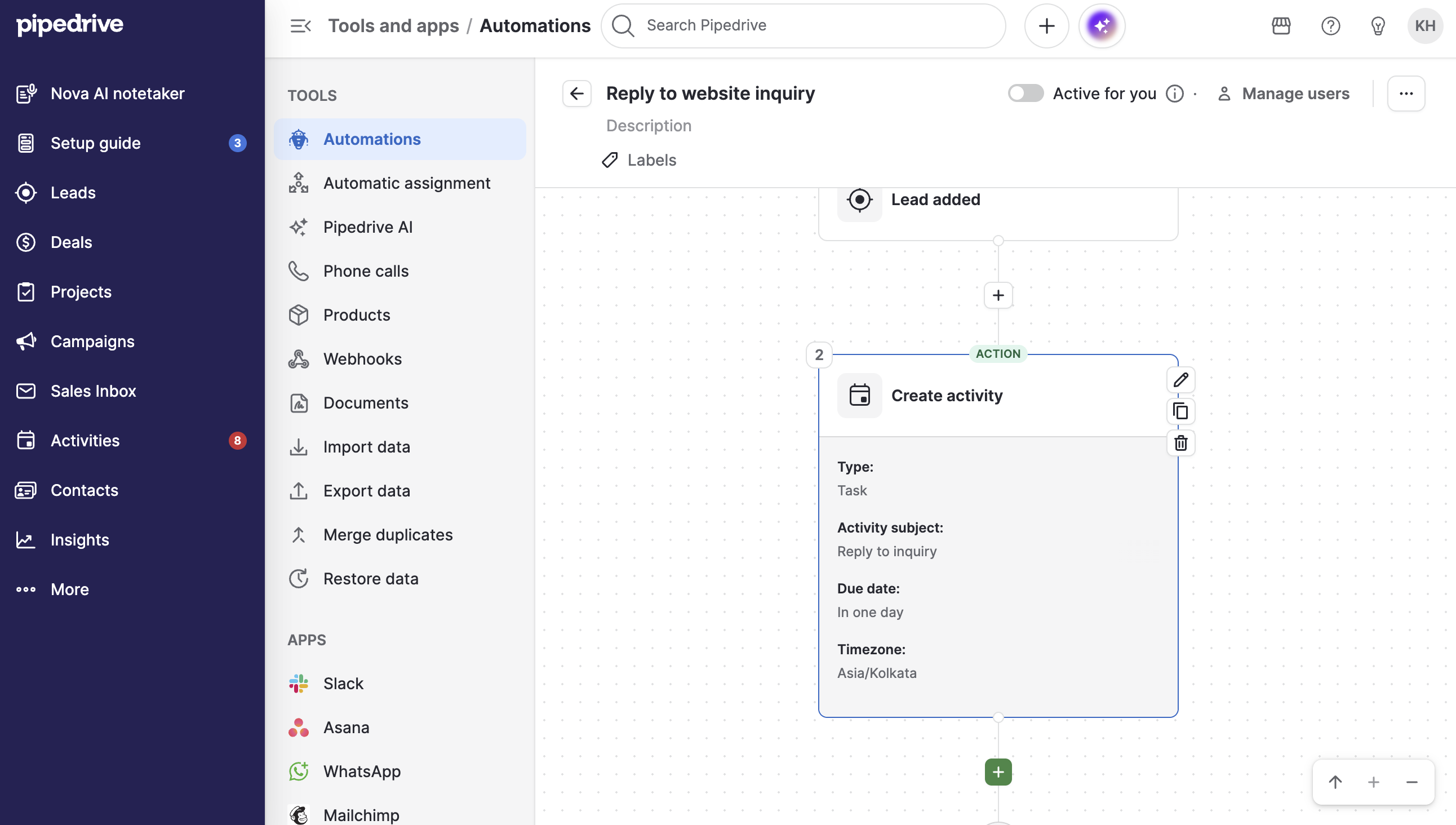
On Lite, the webhook below creates the same follow-up task.
Where the plugin runs out of room
Every submission creates a new lead. The plugin matches the person by email, so a returning client’s lead attaches to their existing record, and Overwrite Contact keeps their details current. If a client writes in from a new email address, though, you can end up with a second person. Pipedrive’s duplicate detection flags those, and you merge them by hand from the item’s More menu.
The plugin also doesn’t set lead owners, and its labels are whatever’s fixed in your tags field. So a two-person studio can’t send web projects to one partner and brand work to the other straight from the form.
On Lite, nothing creates the reply task, since Automations start at Growth. And because the brief stays in Formspree, the lead tells you who asked but not what they asked for.
Advanced setup: Formspree webhook to the Pipedrive API
With a simple webhook, Formspree sends each submission to a function you deploy, and that function talks to Pipedrive directly. The handler creates the lead itself, so the webhook replaces the Pipedrive plugin instead of running next to it. With both active, every submission creates two leads, and only the webhook’s lead gets the note and task. If you set up the plugin first, open the Pipedrive action in the Workflow tab and click Disconnect. Then click + Add New under Actions and choose Webhook. Leave the protocol on simple webhooks, set Authentication to HMAC signature, and paste in your function’s URL. Once you connect, Formspree shows a signing secret. Copy it into your environment variables. Webhooks are available on the Professional and Business plans. Each payload includes a form ID, a keys array, and a submission object with the field values and a _date timestamp.
On the Pipedrive side, the same API token goes in the x-api-token header. According to Pipedrive’s API reference, persons, organizations, and activities use the v2 API (https://{company}.pipedrive.com/api/v2/), while leads, lead labels, and notes are still on v1 (/api/v1/). Custom fields are referenced by 40-character hash keys instead of names.
To find a field’s key, go to Company settings > Data fields and use Copy API key in the field’s three-dot menu, or call GET /v1/dealFields to get them all at once. Single option fields like Project type take the option’s numeric ID, not its name. You’ll find those IDs in the same response’s options array. Send the name instead, and Pipedrive rejects it with a 400.
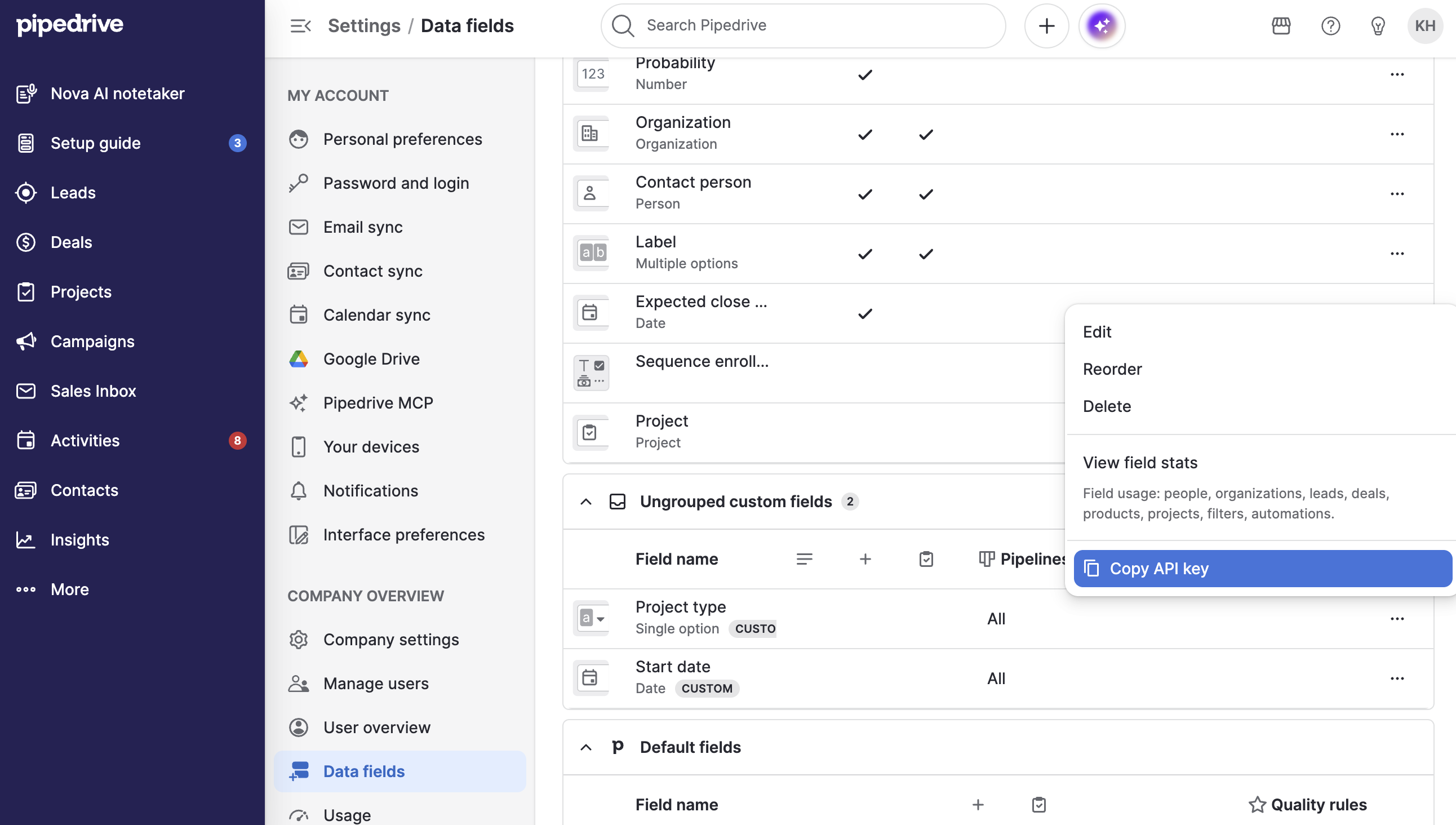
Save these as environment variables: the token, your company domain, Formspree’s signing secret, the Hot label’s ID (from GET /v1/leadLabels), the two field keys, and two maps keyed by project type: one to the option ID, and one to the ID of the Pipedrive user who should own those inquiries (from GET /v1/users). For this form, each map is one line of JSON, with two partners splitting the work:
  PIPEDRIVE_PROJECT_TYPE_OPTIONS={"Brand identity":39,"Website":40,"Web app":41,"Retainer":42}
  PIPEDRIVE_OWNER_IDS={"Brand identity":1234567,"Website":7654321,"Web app":7654321,"Retainer":1234567}
Then add the handler:
  // pages/api/pipedrive-webhook.js
  import crypto from 'node:crypto';

  // The signature covers the raw body, so Next.js must not parse it first
  export const config = { api: { bodyParser: false } };

  const BASE = `https://${process.env.PIPEDRIVE_DOMAIN}.pipedrive.com`;
  const headers = {
    'x-api-token': process.env.PIPEDRIVE_TOKEN,
    'content-type': 'application/json',
  };
  const MIN_HOT_VALUE = 8000;
  // Single option fields take the option's id, listed in GET /api/v1/dealFields
  const PROJECT_TYPES = JSON.parse(process.env.PIPEDRIVE_PROJECT_TYPE_OPTIONS || '{}');
  // Lead owners by project type, as user ids from GET /api/v1/users
  const OWNERS = JSON.parse(process.env.PIPEDRIVE_OWNER_IDS || '{}');

  async function pd(method, path, body) {
    const res = await fetch(`${BASE}${path}`, {
      method,
      headers,
      body: body ? JSON.stringify(body) : undefined,
    });
    const json = await res.json();
    if (!res.ok || json.success === false) {
      // Search paths carry the client's email in the query string, so leave it out
      throw new Error(`${method} ${path.split('?')[0]} ${res.status}: ${json.error ?? 'request failed'}`);
    }
    return json.data;
  }

  async function findId(path, term, field) {
    const found = await pd(
      'GET',
      `${path}/search?term=${encodeURIComponent(term)}&fields=${field}&exact_match=true&limit=1`
    );
    return found?.items?.[0]?.item?.id;
  }

  async function readRawBody(req) {
    const chunks = [];
    for await (const chunk of req) chunks.push(chunk);
    return Buffer.concat(chunks).toString('utf8');
  }

  // Formspree-Signature looks like t=1700000000,v1=<hex>, an HMAC-SHA256 of `${t}.${rawBody}`
  function validSignature(header = '', rawBody) {
    const parts = Object.fromEntries(header.split(',').map((p) => p.trim().split('=')));
    const age = Math.abs(Date.now() / 1000 - Number(parts.t));
    if (!parts.v1 || !(age <= 300)) return false;

    const expected = crypto
      .createHmac('sha256', process.env.FORMSPREE_SIGNING_SECRET)
      .update(`${parts.t}.${rawBody}`)
      .digest('hex');
    const a = Buffer.from(expected);
    const b = Buffer.from(parts.v1);
    return a.length === b.length && crypto.timingSafeEqual(a, b);
  }

  export default async function handler(req, res) {
    if (req.method !== 'POST') return res.status(405).end();

    const rawBody = await readRawBody(req);
    if (!validSignature(req.headers['formspree-signature'], rawBody)) {
      return res.status(401).end();
    }

    const body = JSON.parse(rawBody);
    const s = body.submission;
    // Log only the form and date, so client details stay out of your function logs
    console.log('Formspree webhook received:', body.form, s._date);

    const email = s.email.trim().toLowerCase();
    const amount = Number(s.value);
    const originId = `${body.form}:${s._date}`;
    const ownerId = OWNERS[s['Project type']];

    let lead;
    let personId;
    try {
      const [foundPerson, foundOrg] = await Promise.all([
        findId('/api/v2/persons', email, 'email'),
        s.company ? findId('/api/v2/organizations', s.company, 'name') : undefined,
      ]);

      let orgId = foundOrg;
      if (s.company && !orgId) {
        orgId = (await pd('POST', '/api/v2/organizations', { name: s.company })).id;
      }

      personId = foundPerson;
      if (personId) {
        const leads = await pd('GET', `/api/v1/leads?person_id=${personId}&limit=100`);
        if (leads?.some((l) => l.origin_id === originId)) {
          return res.status(200).json({ ok: true, duplicate: true });
        }
      } else {
        const person = await pd('POST', '/api/v2/persons', {
          name: s.name,
          org_id: orgId,
          emails: [{ value: email, primary: true }],
          phones: s.phone ? [{ value: s.phone, primary: true }] : undefined,
        });
        personId = person.id;
      }

      lead = await pd('POST', '/api/v1/leads', {
        title: `Website inquiry: ${s['Project type']}`,
        person_id: personId,
        organization_id: orgId,
        owner_id: ownerId,
        origin_id: originId,
        value: Number.isNaN(amount) ? undefined : { amount, currency: 'USD' },
        label_ids: amount >= MIN_HOT_VALUE ? [process.env.PIPEDRIVE_HOT_LABEL_ID] : [],
        [process.env.PIPEDRIVE_FIELD_PROJECT_TYPE]: PROJECT_TYPES[s['Project type']],
        [process.env.PIPEDRIVE_FIELD_START_DATE]: s['Start date'] || undefined,
      });
    } catch (err) {
      console.error(err.message);
      return res.status(502).end();
    }

    const tomorrow = new Date(Date.now() + 86400000).toISOString().slice(0, 10);
    const extras = await Promise.allSettled([
      s.message
        ? pd('POST', '/api/v1/notes', {
            lead_id: lead.id,
            content: `<p>${s.message.replace(/\n/g, '<br>')}</p>`,
            pinned_to_lead_flag: 1,
          })
        : undefined,
      pd('POST', '/api/v2/activities', {
        subject: 'Reply to inquiry',
        type: 'task',
        due_date: tomorrow,
        lead_id: lead.id,
        owner_id: ownerId,
        participants: [{ person_id: personId, primary: true }],
      }),
    ]);
    extras.filter((r) => r.status === 'rejected').forEach((r) => console.error(r.reason.message));

    return res.status(200).json({ ok: true });
  }
The handler starts by checking the signature. That’s the only thing standing between your Pipedrive account and anyone who finds the URL. Formspree signs the timestamp and the raw body together, so the handler turns off Next.js body parsing for this route, reads the raw body itself, and rejects anything with a bad signature or a timestamp more than five minutes old. Our signature verification guide covers the details.
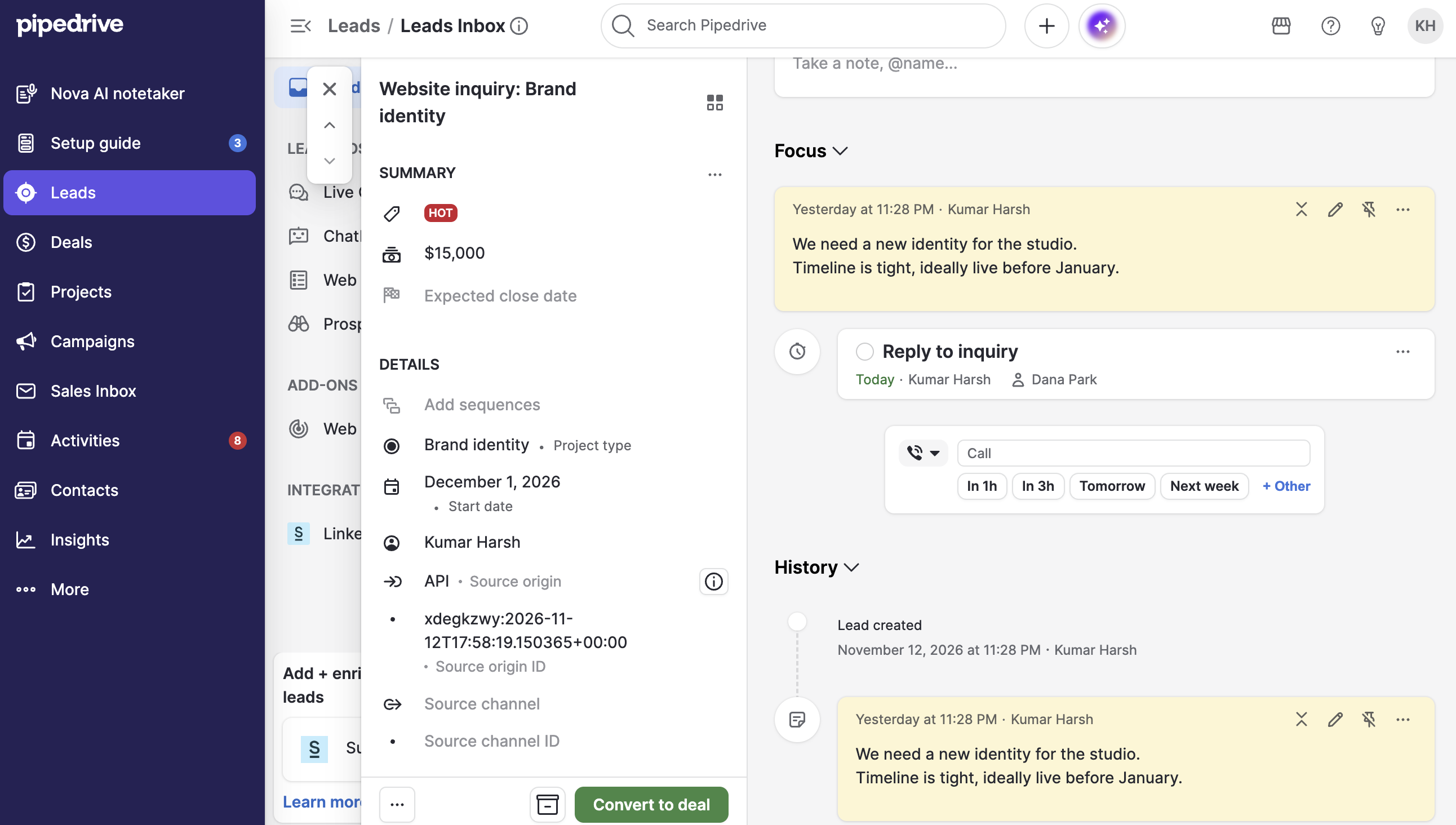
Next, it runs two lookups at the same time, using the search endpoints from Pipedrive’s Persons API: a person by exact email and an organization by exact name. Looking up the organization first keeps a returning client from creating another “Park Studio” with every inquiry. The Leads API requires every lead to link to a person or organization, and the lead call passes custom fields by their hash keys, with the project type as an option ID.
After the lead is created, the handler adds the brief as a pinned note. The Notes API accepts HTML and sanitizes it on Pipedrive’s end. Through the Activities API, it also creates a “Reply to inquiry” task due tomorrow, the same task an automation would create on Growth, and that’s what makes this setup worth it on Lite. The task names the person through participants, since v2 activities don’t have a top-level person_id. The Hot label comes from the budget in code, so big inquiries are already sorted when you open the inbox. Routing works the same way: the handler looks up the project type in your owner map and makes that user the owner of both the lead and the task, so each partner opens their own inquiries. A project type that isn’t in the map stays with the owner of the API token.
Formspree can deliver the same submission more than once, so each lead gets an origin_id built from the form ID and the submission’s _date. Before creating a lead for someone already in Pipedrive, the handler checks for a lead with that origin_id and returns 200 if it finds one. The note and task come after the lead, so if either fails, the handler logs it and still returns 200. A retry would stop at the duplicate check anyway, so it couldn’t fix them.
Handling failures
The console.log after the signature check records only the form ID and submission date. Along with the errors the handler logs, that’s enough to match a failure to its submission in your Formspree dashboard, which keeps every submission no matter what the webhook does. According to our webhooks documentation, Formspree expects a 2xx response within three seconds and retries up to ten times if it doesn’t get one, so your handler needs to be safe to run more than once on the same submission. That’s what the origin_id check is for. Return a 5xx when the person, organization, or lead step fails so Formspree retries, and a 200 when you skip a submission on purpose.
Three seconds isn’t much for a chain of API calls. In testing against a real Pipedrive account, a single search took 0.3 to 0.7 seconds, and the whole handler finished in about 1.5 to 2.1 seconds. That’s why the two lookups run in parallel, and so do the note and task. If your calls run slower, save the submission and return 200 right away, then do the Pipedrive work from a queue.
If you suddenly see a run of 401s, someone probably regenerated the token. Since Pipedrive only allows one active token per user per company, a new token breaks whichever integration you’re running until you paste the new one in.
Pipedrive’s rate limits are 20 requests every two seconds on Lite and 40 on Growth, plus a daily budget of 30,000 base units times your plan multiplier and seat count. This handler uses six or seven requests per inquiry, so a contact form won’t come close.
With the plugin, a submission with an invalid custom field shows a warning icon in your Formspree submissions list, Pipedrive shows as retrying, and no lead appears. Check your field types, especially empty dates, before you blame the token.
Choosing between the plugin and the webhook
Go with the plugin if you’re solo on Growth or higher, where an automation can create the follow-up task. Setup is a token, a currency, and two switches.
Go with the webhook if you’re on Lite and want the follow-up task, you’re a studio that routes by project type, or you want the brief on the lead. You’ll need a deployed function and a signing secret to keep safe.
Where to start
Create the two custom fields and labels, connect the plugin with both options on, and send a test inquiry. Check that the lead shows the value, labels, and custom fields in the Leads Inbox, then build the follow-up automation if your plan includes it. Switch to the webhook when you want the brief on the lead, route inquiries by project type, or are on Lite and need the reply task. Disconnect the Pipedrive action first, because the webhook creates its own lead and you’d otherwise get two for every inquiry.
FAQ
How do I connect a web form to Pipedrive CRM?
Point the form’s action at a Formspree endpoint, add the Pipedrive plugin in the form’s Workflow tab, and paste in your Pipedrive API token. The form needs inputs named name and email, and each submission creates a lead in the Leads Inbox linked to a person and organization. The plugin is available on Formspree’s Professional and Business plans.
Does Pipedrive have a form integration without the Web Forms add-on?
Yes. According to Pipedrive’s plan comparison, Web Forms come with the LeadBooster add-on, which is a paid extra on Lite and Growth and included on Premium and Ultimate. Formspree’s plugin and simple webhook use Pipedrive’s API instead, which every plan includes, so you can create leads from your own HTML form on any Pipedrive plan.
What’s the difference between Pipedrive Web Forms and a Formspree form?
Web Forms are built and styled in Pipedrive’s editor and require the LeadBooster add-on. A Formspree form is your own HTML on your own site, reaches the same Leads Inbox through Formspree’s plugin, and can feed Slack or an auto-reply from the same submission.
Which Pipedrive Marketplace apps connect forms to Pipedrive?
Pipedrive’s Marketplace has a Web Forms and Surveys category with apps like SurveySparrow, MightyForms, and NativeForms, plus Zapier for anything with a Zapier trigger. Formspree connects through its own plugin using your API token, so there’s no Marketplace install and no Zapier tasks.
How do I create a person, lead, or deal in Pipedrive with the API?
Authenticate with your personal token in the x-api-token header. Create or find the person with POST /api/v2/persons or GET /api/v2/persons/search, then POST /api/v1/leads with a title and person_id, or POST /api/v2/deals with a title, pipeline_id, and stage_id when the opportunity is already qualified. Custom fields are passed by their 40-character hash keys.
Should I use OAuth or an API token for a Pipedrive form integration?
Use your personal API token for a private integration like your own website form or a serverless webhook. Pipedrive’s developer documentation only requires OAuth for apps listed in its Marketplace, which other companies install. You only get one active token per user per company, and regenerating it breaks every integration using the old one.
Do form submissions go to the Leads Inbox or straight into a deal?
Formspree’s plugin creates leads, which land in the Leads Inbox as unqualified inquiries. Once you’ve replied and the project is real, click Convert to deal to move it into your pipeline with a value and stage. You can also change the webhook to create a deal directly if you’d rather skip the inbox.