
Announcing the WhatsApp Plugin for Formspree
Every form submission arrives as a WhatsApp message on your phone, on every plan, including Free.
Formspree now connects to WhatsApp. Every form submission lands as a WhatsApp message on your phone as soon as it arrives. It’s available on every plan, including Free.
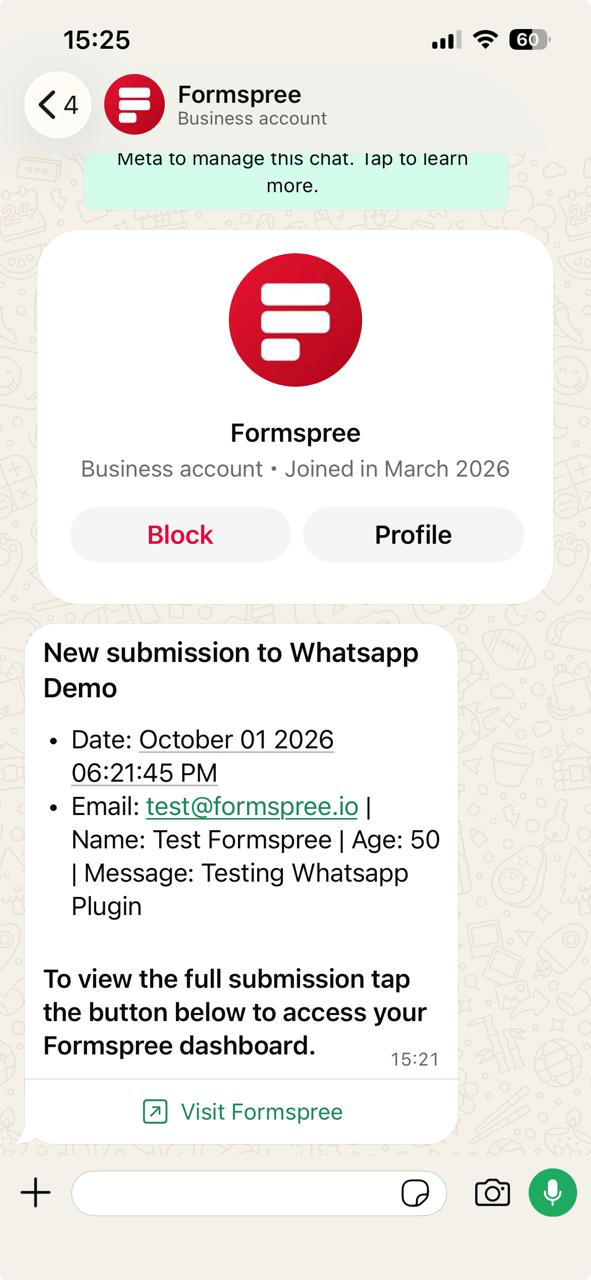
Get submissions where you already are
For a lot of people, WhatsApp is the app they check first, well before email. If you run a small team or a solo business, or want the fastest possible heads-up when a lead comes in, a WhatsApp notification puts the submission in front of you as soon as it arrives, wherever you are.
The plugin sends every submission from a form to a phone number you choose. Each form sends to one number, so you can route different forms to different people on your team.
Works with any form
Your form doesn’t need any specially named fields. Formspree labels each value with its input’s name, so pick names that read well.
  <form action="https://formspree.io/f/{form_id}" method="POST">
    <input type="text" name="name" required />
    <input type="email" name="email" required />
    <textarea name="message"></textarea>
    <button type="submit">Send</button>
  </form>
Unlike our Slack and Telegram plugins, WhatsApp doesn’t use a subject field. The first line of every message is your form’s name. Beyond connecting the plugin, there’s nothing to set up. If your form has a file upload, the message includes a link to each file, hosted on Formspree.
A message template you control
By default, every notification includes the submission date and all of your fields, but you can customize it. To change it, open the plugin’s message editor and use the Insert field buttons to build the message you want, up to 6 lines. The buttons list fields from your form’s recent submissions, so send a test submission first.
For example, this template puts the sender first:
  From: {{name}} ({{email}})
  Date: {{_date}}
  {{message}}
  {{_remaining_fields}}
{{_remaining_fields}} catches every field you haven’t placed, so fields you add to your form later show up without editing the template.
Every message ends with a Visit Formspree button that opens your submissions in the dashboard.
Connecting the plugin
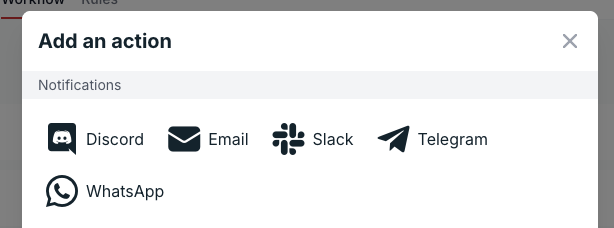
In your form’s Workflow tab, click + Add New under Actions and select WhatsApp under Notifications. Pick your country, enter a phone number registered with WhatsApp, and click Send code. Formspree sends a 6-digit verification code to that number over WhatsApp. Enter it within 5 minutes, and the plugin is connected.
Every submission now lands in that chat. For the full walkthrough, including message customization and troubleshooting, see the setup guide.
Get started
Forms are often the first signal that something needs attention: a lead, a support request, a bug report. The WhatsApp plugin puts that signal on your phone, on every plan, including Free. Connect it from your form’s Workflow tab.